

Registering or Removing a Printer
Registering a Printer
When installing a new printer, register the printer in Configuration Tool.
-
Click [Start], and then select [All Programs] > [Okidata] > [Configuration Tool] > [Configuration Tool].
-
Select [Register Device] from the [Tools] menu.
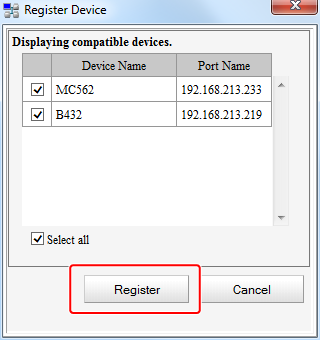
The search results are displayed.
-
Select a printer, and then click [Register].
-
Click [Yes] on a confirmation screen.
Memo
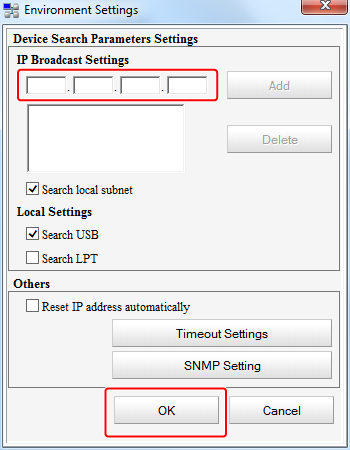
To change the range for searching for your printer, select "Register Device" in the "Tools" menu.
Enter the range you want to search in, and then click [OK].
Removing a Printer
You can remove a registered printer.
-
Click [Start], and then select [All Programs] > [Okidata] > [Configuration Tool] > [Configuration Tool].
-
Right-click the printer in [Registered Device Table].
-
Select [Remove device].
-
Click [Yes] on the confirmation screen.
Checking the Printer Status
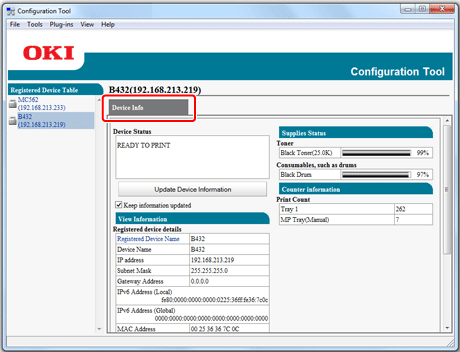
You can check the status and information of the printer.
-
Click [Start], and then select [All Programs] > [Okidata] > [Configuration Tool] > [Configuration Tool].
-
Select a printer from [Registered Device Table].
-
Select the [Device Info] tab.
Memo
-
When the printer is connected to the network, [Device Status] is displayed.
-
To refresh the information, click [Update Device Information].
-