

Setting in the Mac OS X Environment
This is client software for Print Job Accounting.
You can set a user name and user ID to the printer driver.
Setting the User Name and Job Account ID to the Printer Driver (Print Job Accounting Client)
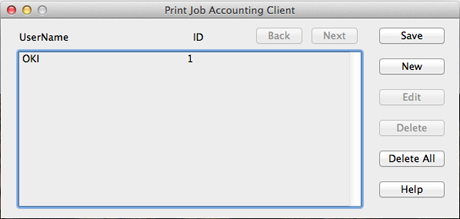
Registering a User ID
-
Start Print Job Accounting Client.
-
Click [New].
-
Enter the Mac OS X login name, new user name, new user ID, and then click [Save].
-
Click [Save].
-
Exit Print Job Accounting Client.
Registering Multiple Users at the Same Time
You can register multiple user IDs and user names at the same time by using a CSV file.
Memo
The following procedure uses TextEdit as an example.
-
Start TextEdit.
-
Enter in the order of login name, user ID, and user name, separated with commas.
-
Save the file in a CSV format.
-
Start Print Job Accounting Client.
-
Select [Import] from the [File] menu.
-
Select the CSV file you created in step 3, and then click [Open].
-
Click [Save].
-
Exit Print Job Accounting Client.
Changing a User ID and User Name
You can change the user name and user ID.
-
Start Print Job Accounting Client.
-
Select the user to change, and then click [Edit].
-
Enter the new user ID and user name, and then click [Save].
-
Click [Save].
-
Exit Print Job Accounting Client.
Deleting a User ID and User Name
You can delete the username and user ID.
-
Start Print Job Accounting Client.
-
Select the user to delete, and then click [Delete].
-
Click [Save].
-
Exit Print Job Accounting Client.