

Windows PCL Printer Driver
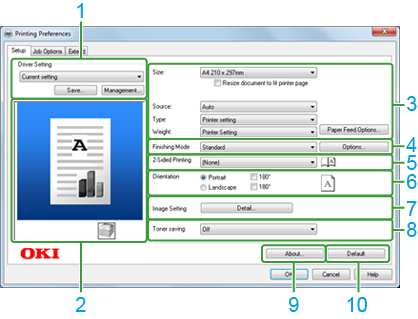
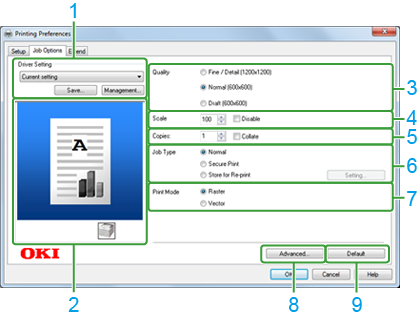
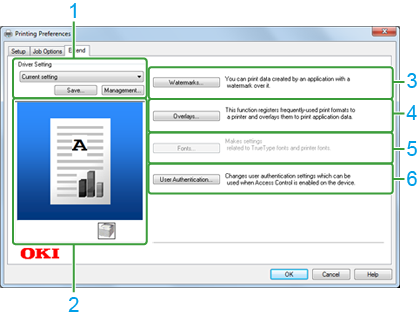
You can switch between the [Setup], [Job Options], and [Extend] tabs for settings.
[Setup] Tab
|
Item |
Description |
|
|---|---|---|
|
1 |
Driver Setting |
Prints by using the selected settings. |
|
2 |
Preview area |
Enables the user to check the images that show the print page and the paper loaded in the device. To switch the images, click the small icon displayed in the preview area. |
|
3 |
Paper Size |
Selects a paper size for printing. Selecting the [Resize document to fit printer page] check box allows you to print on paper of a size different from the document size. |
|
Source |
Selects a tray from which paper is fed. |
|
|
Paper type |
Selects a paper type for printing. |
|
|
Weight |
Specifies the paper weight and type to be used. |
|
|
Paper Feed Options |
Sets the printer's paper feed settings on the [Paper Feed Options] screen. |
|
|
4 |
Finishing Mode |
Selects normal printing, multi-page printing, booklet printing, poster printing, or other printing types. |
|
Options |
Sets the multiple page settings on the [Options] screen. |
|
|
5 |
2-Sided Printing |
Specifies when performing duplex printing. |
|
6 |
Orientation |
Selects the orientation of the document to be printed. Selecting the [180°] check box turns the document 180 degrees for printing. |
|
7 |
Image Setting |
Adjusts the contrast for monochrome printing on the [Detail] screen. |
|
8 |
Toner Saving |
Decreases the print density to save toner. |
|
9 |
About |
Displays the version of the printer driver. |
|
10 |
Default |
Resets the settings on the tab to their default values. |
[Job Options] Tab
|
Item |
Description |
|
|---|---|---|
|
1 |
Driver Setting |
Prints by using the selected settings. |
|
2 |
Preview area |
Enables the user to check the images that show the print page and the paper loaded in the device. To switch the images, click the small icon displayed in the preview area. |
|
3 |
Print Quality |
Specifies the resolution for printing. |
|
4 |
Scale |
Specifies the enlargement/reduction rate for printing. By selecting the [Disable] check box, the printer driver notifies the application that it has no capability to produce enlarged or reduced prints. |
|
5 |
Copies |
Specifies the number of copies to print. Select the [Collate] check box to print multiple documents in units of copies. |
|
6 |
Job Type |
Specifies the job type. [Job PIN] becomes available when [Secure Print] or [Store for Re-print] is selected. |
|
Authentication setting |
Sets the settings necessary for using the authentication print function on the [Job PIN] screen. |
|
|
7 |
Print Mode |
Specifies a print mode when you register forms for overlay print, or when you print using computer fonts. |
|
8 |
Advanced |
Changes the advanced settings. |
|
9 |
Default |
Resets the settings on the tab to their default values. |
[Extend] Tab
|
Item |
Description |
|
|---|---|---|
|
1 |
Driver Setting |
Prints by using the selected settings. |
|
2 |
Preview area |
Enables the user to check the images that show the print page and the paper loaded in the device. To switch the images, click the small icon displayed in the preview area. |
|
3 |
Watermarks |
Selected when using a Watermark. |
|
4 |
Overlays |
Selected when using overlays. |
|
5 |
Fonts |
Specifies TrueType fonts and printer fonts. |
|
6 |
User Authentication |
Specifies the user authentication. |