

Windows PS Printer Driver
You can switch between the [Layout], [Paper/Quality], and [Job Options] tabs for settings.
[Layout] Tab
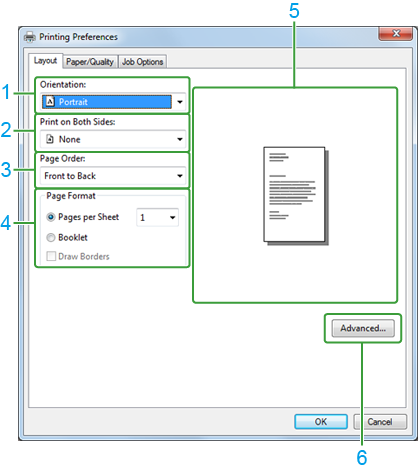
|
Item |
Description |
|
|---|---|---|
|
1 |
Orientation |
Specifies the printing direction. |
|
2 |
Print on Both Sides |
Specifies when performing duplex printing. |
|
3 |
Page Order |
Specifies a page order for the document to be printed. |
|
4 |
Page Format |
Specifies the number of pages that is printed on a sheet of paper, or booklet printing. Selecting the [Draw Borders] check box displays the page borders for printing. |
|
5 |
Preview area |
Displays a preview image of the printed result. |
|
6 |
Advanced |
Sets the advanced settings for print quality and paper size. |
[Paper/Quality] Tab
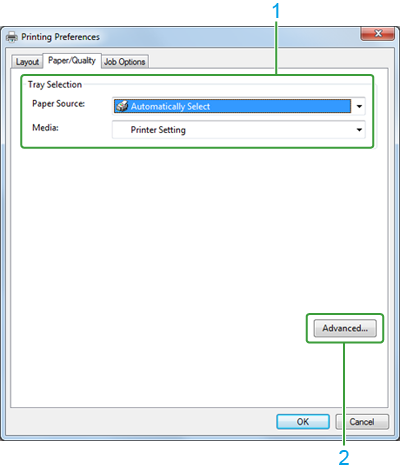
|
Item |
Description |
|
|---|---|---|
|
1 |
Tray Selection |
Sets the tray from which paper is fed, media type, media weight, and other settings. |
|
2 |
Advanced |
Sets the advanced settings for print quality and paper size. |
[Job Options] Tab
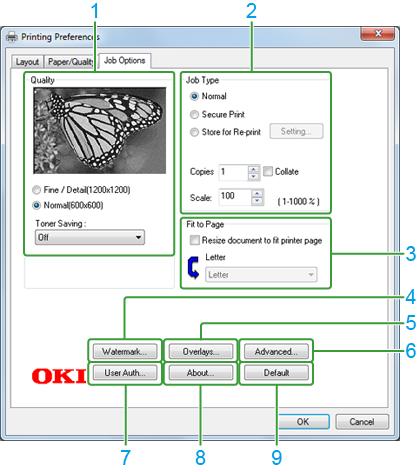
|
Item |
Description |
|
|---|---|---|
|
1 |
Print Quality |
Specifies the resolution for printing. Selecting [Toner saving] decreases the print density to save toner. |
|
2 |
Job Type |
Specifies the job type and the number of copies to print, enlargement/reduction rate. |
|
3 |
Fit to Page |
Selecting the [Resize document to fit printer page] check box allows you to print on paper of a size different from the document size. |
|
4 |
Watermarks |
Selected when using a watermark. |
|
5 |
Overlays |
Selected when using overlays. |
|
6 |
Advanced |
Sets some other printing settings. |
|
7 |
User Auth |
Specifies the user authentication. |
|
8 |
About |
Displays the version of the printer driver. |
|
9 |
Default |
Resets the settings on the tab to their default values. |