

Printing with Changed Paper Size
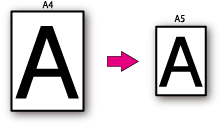
You can print on paper of a different size without changing the print data.
Note
-
Available paper size changes are [A3 -> A4] and [B4 -> A4] only.
-
This function may not properly operate with certain applications.
-
The Windows printer driver's [Scale] setting is for reducing data size, and does not convert paper size.
-
The PS printer driver is not available with B412.
For Windows PCL Printer Driver
-
Select [Print] from the [File] menu.
-
Click [Preferences].
-
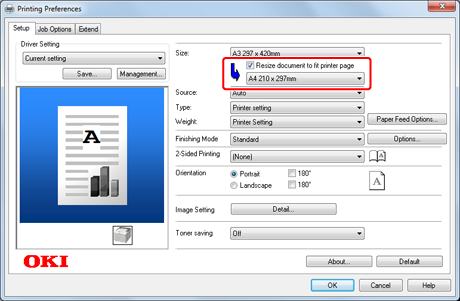
Select a paper size to edit from [Size] on the [Setup] tab.
-
Select the [Resize document to fit printer page] check box, and then select a paper size to print.
-
Click [OK].
The [Printing Preferences] screen closes.
-
Click [Print] on the [Print] screen.
Printing starts.
For Windows PS Printer Driver
-
Select [Print] from the [File] menu.
-
Click [Preferences].
-
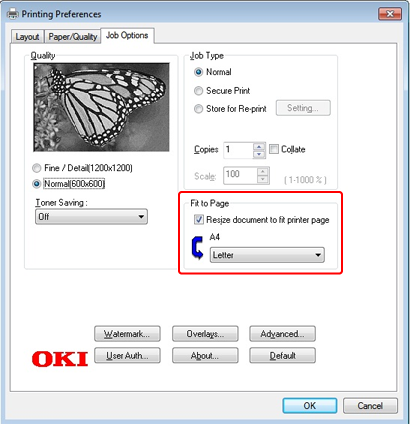
Select the [Resize document to fit printer page] check box on the [Job Options] tab, and then select a paper size to print.
-
Click [OK].
The [Printing Preferences] screen closes.
-
Click [Print] on the [Print] screen.
Printing starts.
For Windows XPS Printer Driver
-
Select [Print] from the [File] menu.
-
Click [Preferences].
-
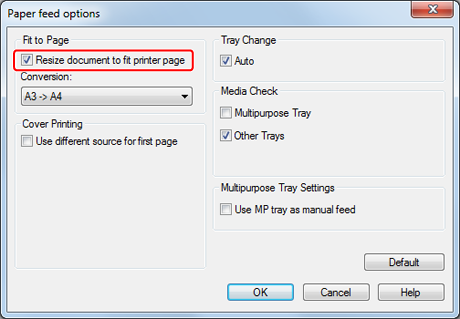
Click [Paper Feed Options] on the [Setup] tab.
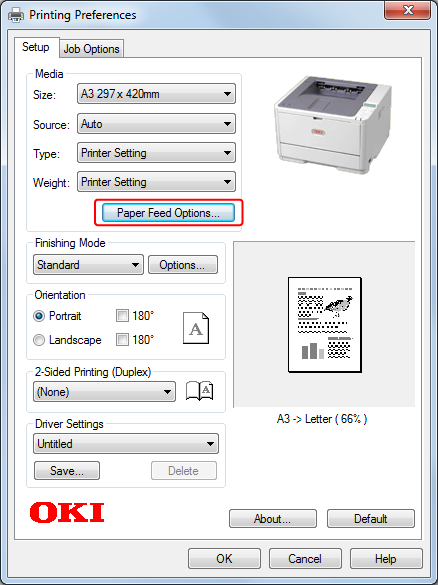
The [Paper Feed Options] screen is displayed.
-
Select the [Resize document to fit printer page] check box, and then select a paper size to print.
-
Click [OK].
The [Paper Feed Options] screen closes.
-
Click [OK].
The [Printing Preferences] screen closes.
-
Click [Print] on the [Print] screen.
Printing starts.
For Mac OS X Printer Driver
-
Select [Print] from the [File] menu.
-
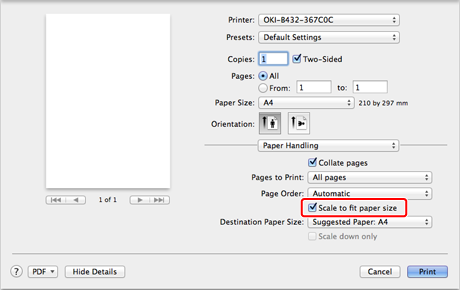
Select [Paper Handling] from the panel menu.
Memo
If setting details are not displayed in the print dialog box for Mac OS X 10.7 to 10.9, click [Show Details] at the bottom of the dialog box.
-
Select the [Scale to fit paper size] check box.
-
Select a paper size to use from [Destination Paper Size].
-
Change other settings if necessary, and then click [Print].
Printing starts.