

Printing on Long Paper
Paper with a length greater than 356 mm (long paper) is loaded in the MP tray. Open the printer driver on your computer and register the paper size. Select the registered paper size when printing. You can set the settings for printing on paper with a length longer than 356 mm from the MP tray.
[Available paper size]
-
Width: 86 to 216 mm
-
Length: 140 to 1321 mm
Note
-
Be sure to set the paper size so that the length is longer than the width.
-
When printing on paper with a paper length that exceeds 356 mm, use the faceup stacker for output.
-
This function may not be available in some applications.
-
The PS printer driver is not available with B412.
Loading Paper
-
Load long paper in the MP tray.
-
Open the faceup stacker on the rear side of the printer.
-
Press
 (ONLINE) to select [READY TO PRINT].
Next, set printing settings from a printer driver.
For Windows PCL Printer Driver
-
Click [Start], and then select [Devices and Printers].
-
Right-click the [OKI B432] icon, and then select [Printing Preferences] > [OKI B432(PCL)].
-
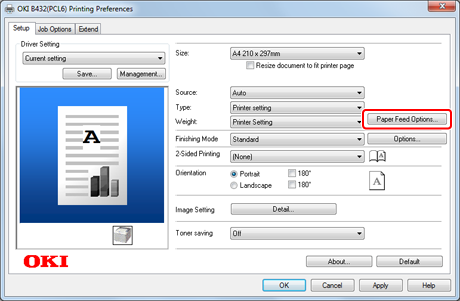
Click [Paper Feed Options] on the [Setup] tab.
-
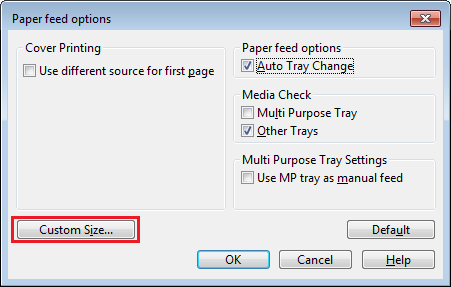
Click [Custom Size] on the [Paper feed options] screen.
-
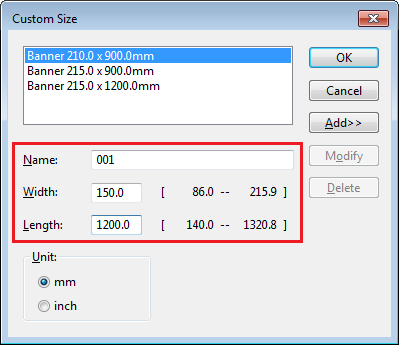
Enter information in [Name], [Width], and [Length] on the [Custom Size] screen.
-
Click [Add].
The created paper size is added to the bottom of the list from which you can select a paper size for [Size] on the [Setup] tab. You can save up to 32 paper sizes.
-
Click [OK].
The [Custom Size] screen closes.
-
Click [OK].
The [Paper feed options] screen closes.
-
Click [OK].
The [Printing Preferences] screen closes.
-
Open a file to print from an application.
-
Select the paper size for the registered long paper, and then start printing.
For Windows PS Printer Driver
-
Click [Start], and then select [Devices and Printers].
-
Right-click the [OKI B432] icon, and then select [Printing Preferences] > [OKI B432(PS)].
-
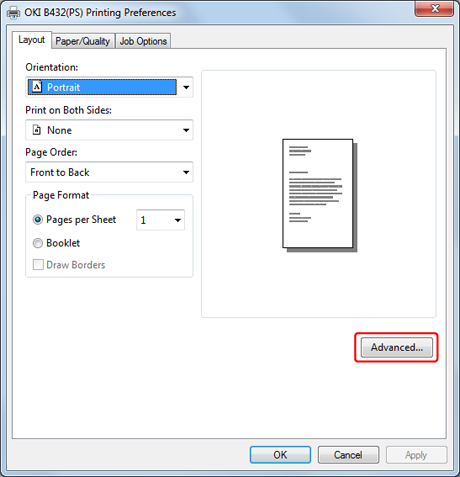
Click [Advanced] on the [Layout] tab.
-
Click [Paper Size], and then select [PostScript Custom Page Size] from the drop-down list.
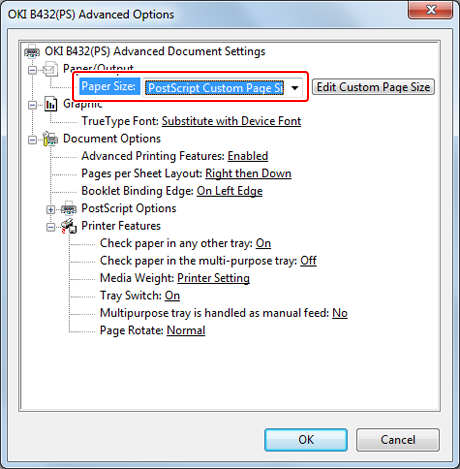
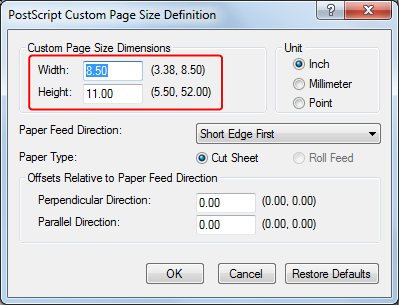
The [PostScript Custom Page Size Definition] screen is displayed.
-
Enter values in [Width] and [Height].
-
Click [OK].
The [OKI B432(PS) Advanced Options] screen closes.
-
Click [OK].
The [OKI B432(PS) Advanced Options] screen closes.
-
Click [OK].
The [OKI B432(PS) Printing Preferences] screen closes.
-
Open a file to print from an application.
-
Select the paper size for the registered long paper, and then start printing.
Note
If printing on large-size paper is not properly performed with the PS printer driver, setting [Quality] to [Normal] may resolve the problem.
For Mac OS X Printer Driver
-
Select [Page Setup] from the [File] menu.
-
Select [Manage Custom Size] from [Paper Size].
-
Click [+] to add an item to the list of custom paper sizes.
-
Double-click [Untitled], and then enter a name of the long paper size.
-
Enter values in [Width] and [Height].
-
Click [OK].
-
Select [Print] from the [File] menu.
-
Set other settings if necessary, and then start printing from the panel menu.