

Printing Manually One by One
You can print one sheet at a time by loading paper in the MP tray.
A message instructing you to load paper in the MP tray is displayed on the display screen on the operator panel every time you print one page.
Note
The PS printer driver is not available with B412.
Loading Paper
-
Load paper in the MP tray.
-
Set the paper output.
For Windows PCL Printer Driver
-
Select [Print] from the [File] menu.
-
Click [Preferences].
-
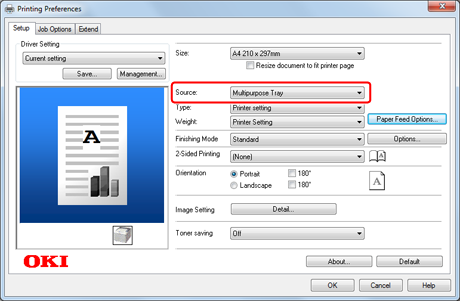
Select [Multipurpose Tray] from [Source] on the [Setup] tab.
-
Click [Paper Feed Options].
-
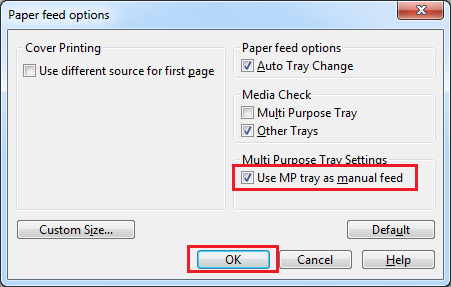
Select the [Use MP tray as manual feed] check box, and then click [OK].
-
Change other settings if necessary, and then click [OK].
The [Printing Preferences] screen closes.
-
Click [Print] on the [Print] screen.
Printing starts. When the printing is finished, a message instructing you to load paper in the MP tray is displayed on the display screen on the operator panel.
-
Press
 (ONLINE) on the operator panel.
Printing starts. When printing a multiple page document, the same message is displayed every time you print one page.
For Windows PS Printer Driver
-
Select [Print] from the [File] menu.
-
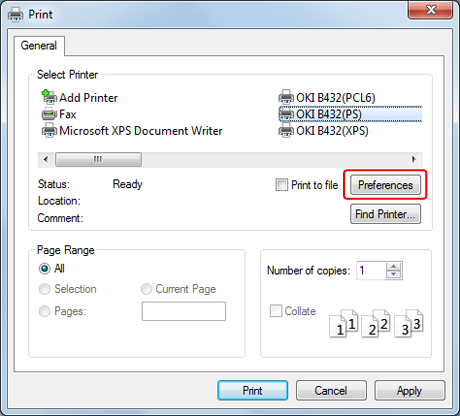
Click [Preferences].
-
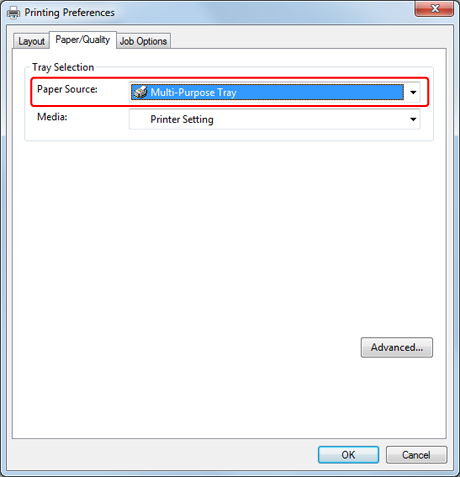
Select [Multi-Purpose Tray] from [Paper Source] on the [Paper/Quality] tab.
-
Click [Preferences].
-
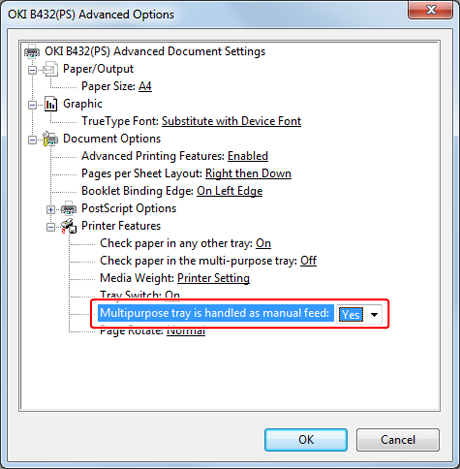
Select [Yes] for [Multipurpose tray is handled as manual feed].
-
Change other settings if necessary, and then click [OK].
The [Printing Preferences] screen closes.
-
Click [Print] on the [Print] screen.
Printing starts. When the printing is finished, a message instructing you to load paper in the MP tray is displayed on the display screen on the operator panel.
-
Press
(ONLINE) on the operator panel.Printing starts. When printing a multiple page document, the same message is displayed every time you print one page.
For Windows XPS Printer Driver
-
Select [Print] from the [File] menu.
-
Click [Preferences].
-
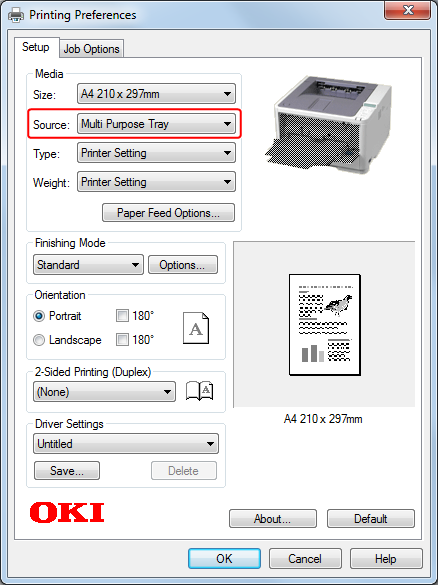
Select [Multipurpose Tray] from [Source] on the [Setup] tab.
-
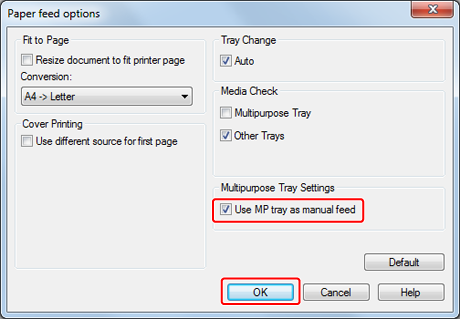
Click [Options].
-
Select the [Use MP tray as manual feed] check box, and then click [OK].
-
Change other settings if necessary, and then click [OK].
The [Printing Preferences] screen closes.
-
Click [Print] on the [Print] screen.
Printing starts. When the printing is finished, a message instructing you to load paper in the MP tray is displayed on the display screen on the operator panel.
-
Press
(ONLINE) on the operator panel.Printing starts. When printing a multiple page document, the same message is displayed every time you print one page.
For Mac OS X PS Printer Driver
-
Select [Print] from the [File] menu.
-
Select [Paper Feed] from the panel menu.
-
Select [All Pages From], and then select [Multi-Purpose Tray].
-
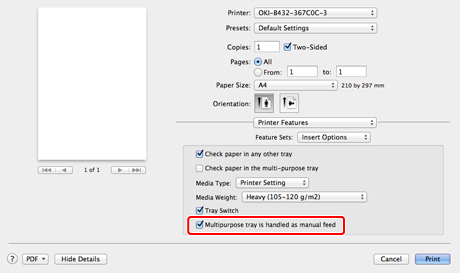
Select [Printer Features] from the panel menu.
-
Select [Insert Options] from [Feature Sets].
-
Select the [Multipurpose tray is handled as manual feed] check box.
-
Change other settings if necessary, and then click [Print].
Printing starts. When the printing is finished, a message instructing you to load paper in the MP tray is displayed on the display screen on the operator panel.
-
Press
(ONLINE) on the operator panel.Printing starts. When printing a multiple page document, the same message is displayed every time you print one page.
For Mac OS X PCL Printer Driver
As an example, this section describes how to print by using TextEdit.
-
Select [Print] from the [File] menu.
-
Select [Setup] from the panel menu.
Memo
If setting details are not displayed in the print dialog box for Mac OS X 10.7 to 10.9, click [Show Details] at the bottom of the dialog box.
-
Select [Multipurpose Tray] for [Paper Source].
-
Click [Printer Options].
-
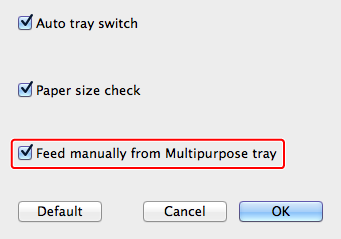
Select the [Feed manually from Multipurpose tray] check box on the [Printer Options] screen.
-
Change other settings if necessary, and then click [Print].
Printing starts. When the printing is finished, a message instructing you to load paper in the MP tray is displayed on the display screen on the operator panel.
-
Press
(ONLINE) on the operator panel.Printing starts. When printing a multiple page document, the same message is displayed every time you print one page.