

Combining Multiple Pages onto One Sheet of Paper
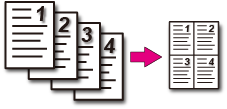
You can print data of multiple pages onto a single side of a sheet of paper by using reduced size.
Note
-
This function reduces the size of data for printing, which may cause the center of the paper to be inaccurate or the printing to be light.
-
Changing the value of the bind margin makes the margins on the other sides larger because the whole page is reduced in size for printing to suit the width of the bind margin.
-
The PS printer driver is not available with B412.
For Windows PCL Printer Driver
-
Select [Print] from the [File] menu.
-
Click [Preferences].
-
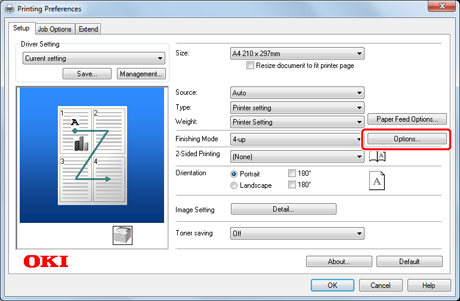
Select [n-up] (n indicates the number of pages to print on each sheet) for [Finishing Mode] on the [Setup] tab.
-
Click [Options].
-
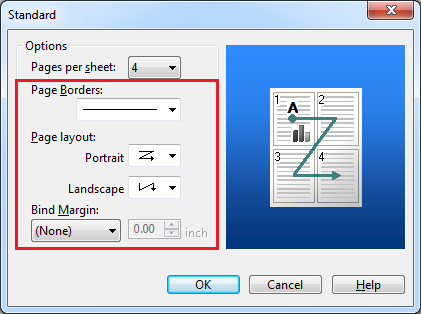
Set [Page Borders], [Page layout], and [Bind Margin].
The bind margin can be set to 0 to 30 mm at the top, bottom, right, and/or left.
-
Change other settings if necessary, and then click [OK].
The [Printing Preferences] screen closes.
-
Click [Print] on the [Print] screen.
Printing starts.
For Windows PS Printer Driver
-
Select [Print] from the [File] menu.
-
Click [Preferences].
-
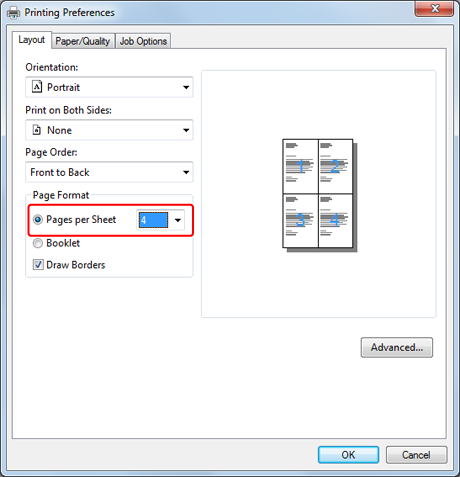
Select [Pages per Sheet] on the [Layout] tab.
Note
[Draw Borders] and [Pages per Sheet] are not available with Windows Server 2003.
Memo
Select [Draw Borders] if necessary. Page layout can also be changed via [Advanced] > [Pages per Sheet Layout].
-
Change other settings if necessary, and then click [OK].
The [Printing Preferences] screen closes.
-
Click [Print] on the [Print] screen.
Printing starts.
For Windows XPS Printer Driver
-
Select [Print] from the [File] menu.
-
Click [Preferences].
-
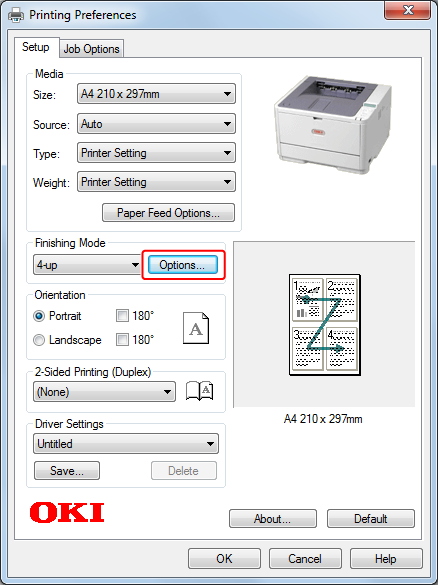
Select [n-up] (n indicates the number of pages to print on each sheet) for [Finishing Mode] on the [Setup] tab.
-
Click [Preferences].
-
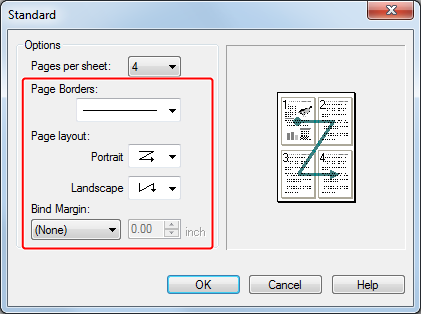
Set [Page Borders], [Page layout], and [Bind Margin].
The bind margin can be set to 0 to 30 mm at the top, bottom, right, and/or left.
-
Change other settings if necessary, and then click [OK].
The [Printing Preferences] screen closes.
-
Click [Print] on the [Print] screen.
Printing starts.
For Mac OS X Printer Driver
-
Select [Print] from the [File] menu.
-
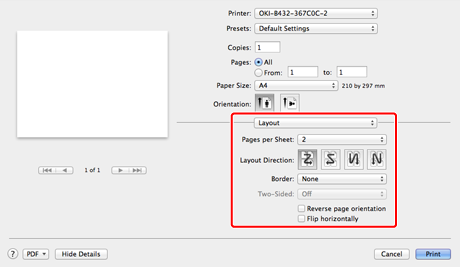
Select [Layout] from the panel menu.
Memo
If setting details are not displayed in the print dialog box for Mac OS X 10.7 to 10.9, click [Show Details] at the bottom of the dialog box.
-
Select the number of pages to print on each sheet from [Pages per Sheet].
-
Set each setting at [Border] and [Layout Direction].
-
Change other settings if necessary, and then click [Print].
Printing starts.