

Printing from the Last Page of a Document
You can print in forward or reverse page order.
When printing in reverse page order to the faceup stacker, printouts are stacked in forward page order.
Note
-
This function is not available with the Windows PCL/XPS printer driver.
-
If the faceup stacker is not opened, printouts are output to the facedown stacker.
-
The PS printer driver is not available with B412.
For Windows PS Printer Driver
-
Select [Print] from the [File] menu.
-
Select [Front to Back] or [Back to Front] from [Page Order] on the [Layout] tab.
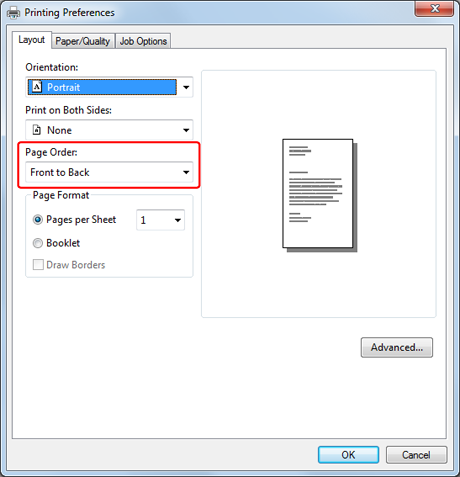
-
Change other settings if necessary, and then click [OK].
The [Printing Preferences] screen closes.
-
Click [Print] on the [Print] screen.
Printing starts.
For Mac OS X Printer Driver
-
Select [Print] from the [File] menu.
-
Select [Paper Handling] from the panel menu.
-
Select [Normal] or [Reverse] from [Page Order].
-
Set other settings if necessary, and then start printing.