

Printing Only the Cover from a Different Tray
You can feed the first page of a print job from one tray and the remaining pages from another tray.
Note
-
This function is not available with the Windows PS printer driver and Mac OS X PCL printer driver.
-
The PS printer driver is not available with B412.
For Windows PCL Printer Driver
-
Select [Print] from the [File] menu.
-
Click [Preferences].
-
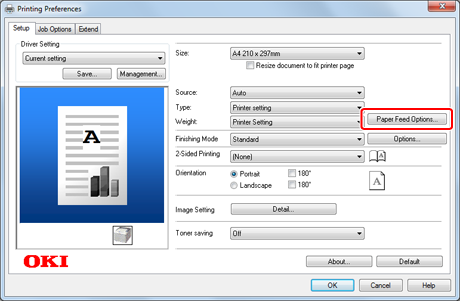
Click [Paper Feed Options] on the [Setup] tab.
-
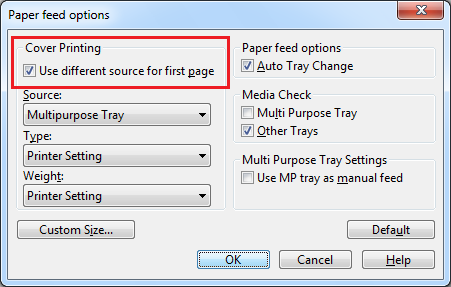
Select the [Use different source for first page] check box.
-
Select a paper tray from [Paper Feed], and then click [OK].
Select a media type from [Weight] if necessary.
-
Change other settings if necessary, and then click [OK].
The [Printing Preferences] screen closes.
-
Click [Print] on the [Print] screen.
Printing starts.
For Windows XPS Printer Driver
-
Select [Page Setup] on the [File] menu.
-
Click [Preferences].
-
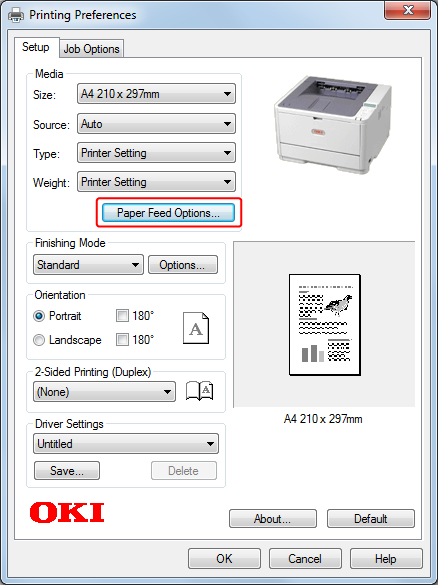
Click [Paper Feed Options] in [Media] on the [Setup] tab.
-
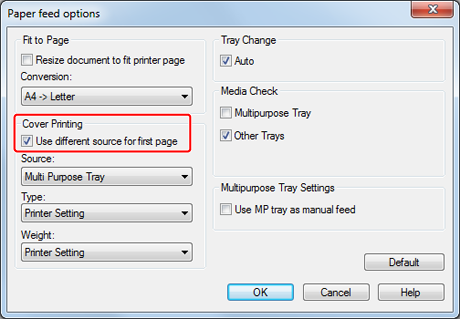
Select the [Use different source for first page] check box.
-
Select a paper tray from [Source], and then click [OK].
Select a media type from [Weight] if necessary.
-
Change other settings if necessary, and then click [OK].
The [Printing Preferences] screen closes.
-
Click [Print] on the [Print] screen.
Printing starts.
For Mac OS X PS Printer Driver
-
Select [Print] from the [File] menu.
-
Select [Paper Feed] from the panel menu.
-
Select [First Page From], and then select a tray to feed the first page and a tray to feed the remaining pages.
-
Change other settings if necessary, and then click [Print].
Printing starts.