

Making a Booklet (Booklet Printing)
Note
-
This function may not properly operate with certain applications.
-
This function is not available with the Mac OS X printer driver.
-
The PS printer driver is not available with B412.
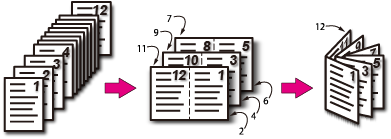
For Windows PCL Printer Driver
-
Select [Print] from the [File] menu.
-
Click [Preferences].
-
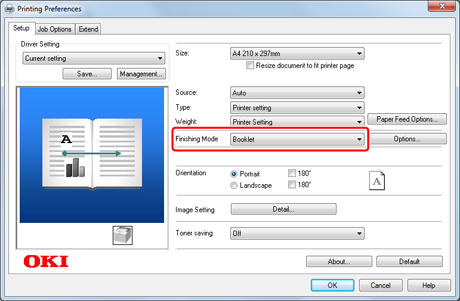
Select [Booklet] for [Finishing Mode] on the [Setup] tab.
-
Click [Options].
-
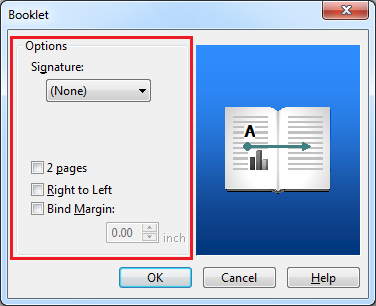
Set [Signature], [2 pages], [Right to Left], and [Bind Margin] on the [Booklet] screen if necessary.
-
Click [OK] to close the [Booklet] screen.
-
Change other settings if necessary, and then click [OK].
The [Printing Preferences] screen closes.
-
Click [Print] on the [Print] screen.
Printing starts.
Note
-
If you are unable to use [Booklet] printing, select [Start] > [Devices and Printers], right-click the [OKI B432] icon, select [Printer properties] > [OKI B432(PCL)] > on the [Advanced] tab, and then select the [Enable advanced printing features] check box.
-
Watermarks are not printed properly with [Booklet] printing.
Memo
-
Example: Making an A5 booklet by using A4 paper
Select [A4] for [Size] in [Job Options].
-
To make a right-fold booklet (a booklet with its binding on the right side when the first page is facing up), select [On Right Edge] for [Booklet Binding Edge] in [Advanced Option].
For Windows PS Printer Driver
-
Select [Print] from the [File] menu.
-
Click [Preferences].
-
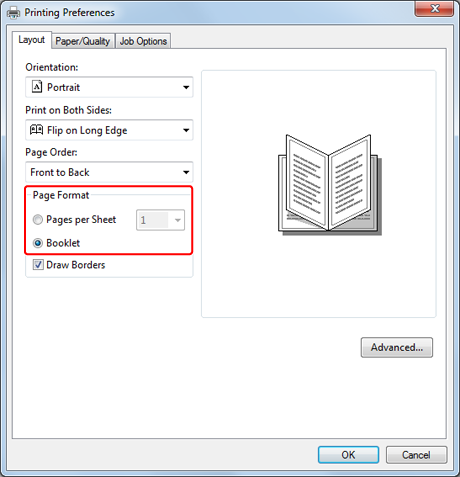
Select [Booklet] for [Page Format] on the [Layout] tab.
-
Select [Draw Borders] if necessary.
Note
[Draw Borders] is not available with Windows Server 2003.
-
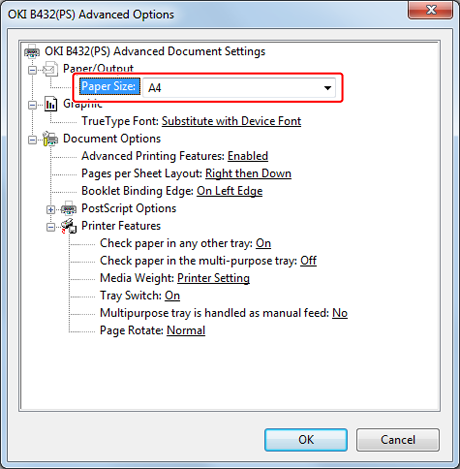
Click [Preferences], and then select a paper size from [Paper Size] to use for actual printing.
Note
-
[Booklet Binding Edge] is not available with Windows Server 2003.
-
If you are unable to use [Booklet] printing, select [Start] > [Devices and Printers], right-click the [OKI B432] icon, select [Printer properties] > [OKI B432(PS)] > on the [Advanced] tab, and then select the [Enable advanced printing features] check box.
-
Watermarks are not printed properly with [Booklet] printing.
-
If the PostScript data is generated with an application, booklet printing specification may not properly operate. Whether this can be avoided depends on the application. Check the manual for your application. For example, with Adobe Acrobat or Adobe Reader, proper booklet printing can be made available by selecting the "Print as Images" check box in the advanced settings in the print dialog box.
Memo
-
Example: Making an A5 booklet by using A4 paper
Select [A4] for [Size] in [Job Options].
-
To make a right-fold booklet (a booklet with its binding on the right side when the first page is facing up), select [On Right Edge] for [Booklet Binding Edge] in [Advanced Options].
-
-
Click [OK] to close the [Advanced Options] screen.
-
Change other settings if necessary, and then click [OK].
The [Printing Preferences] screen closes.
-
Click [Print] on the [Print] screen.
Printing starts.
For Windows XPS Printer Driver
-
Select [Print] from the [File] menu.
-
Click [Preferences].
-
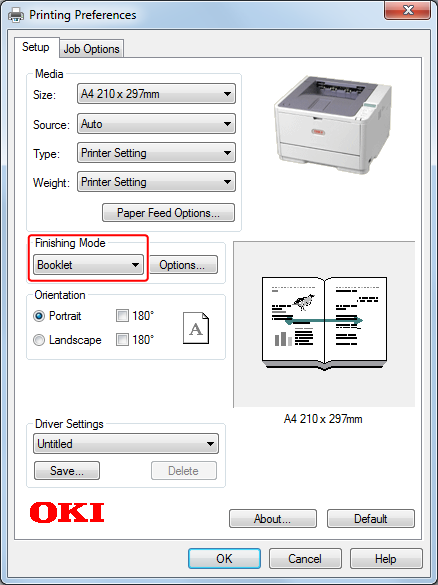
Select [Booklet] for [Finishing Mode] on the [Setup] tab.
-
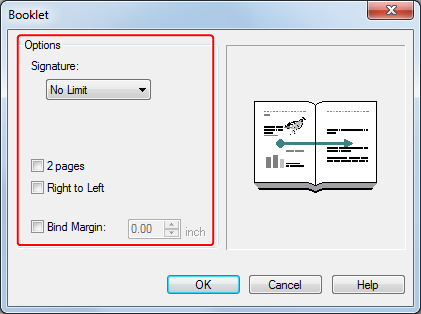
Set [Signature], [2 pages], [Right to Left], and [Bind Margin] on the [Booklet] screen if necessary.
-
Click [OK] to close the [Booklet] screen.
-
Change other settings if necessary, and then click [OK].
The [Printing Preferences] screen closes.
-
Click [Print] on the [Print] screen.
Printing starts.
Note
-
If you are unable to use [Booklet] printing, select [Start] > [Devices and Printers], right-click the [OKI B432] icon, select [Printer properties] > [OKI B432(XPS)] > on the [Advanced] tab, and then select the [Enable advanced printing features] check box.
-
Watermarks are not printed properly with [Booklet] printing.
-
If the PostScript data is generated with an application, booklet printing specification may not properly operate. Whether this can be avoided depends on the application. Check the manual for your application. For example, with Adobe Acrobat or Adobe Reader, proper booklet printing can be made available by selecting the [Print as Images] check box in the advanced settings in the print dialog box.
Memo
Example: Making an A5 booklet by using A4 paper
Select [A4] for [Size] in [Job Options].