

Printing a Watermark (Watermark)
You can print a text watermark, such as "Sample" or "Confidential", on the content printed from an application.

Note
-
This function is not available with the Mac OS X printer driver.
-
Watermarks (Watermark) are not printed properly for booklet printing.
-
The PS printer driver is not available with B412.
For Windows PCL Printer Driver
-
Select [Print] from the [File] menu.
-
Click [Preferences].
-
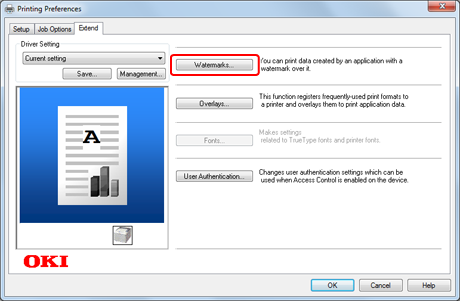
Click [Watermarks] on the [Extend] tab.
-
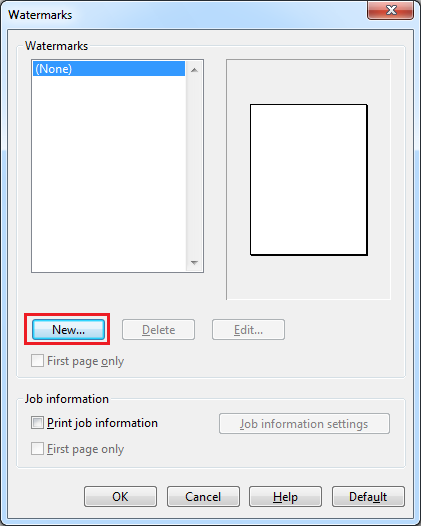
Click [New].
-
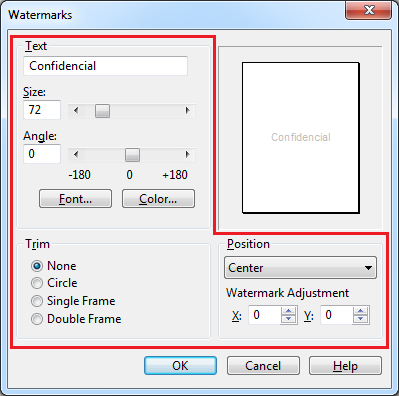
Enter text in [Text] on the [Watermarks] screen, and then set [Font], [Size], and other settings.
-
Check that the watermark to be printed is selected, and then press [OK].
The [Watermarks] screen closes.
-
Change other settings if necessary, and then click [OK].
The [Printing Preferences] screen closes.
-
Click [Print] on the [Print] screen.
Printing starts.
For Windows PS Printer Driver
-
Select [Print] from the [File] menu.
-
Click [Preferences].
-
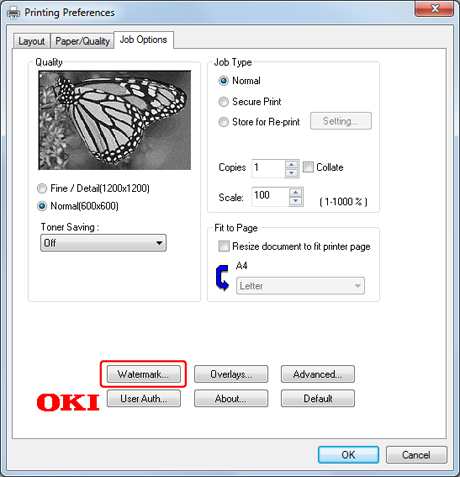
Click [Watermark] on the [Job Options] tab.
-
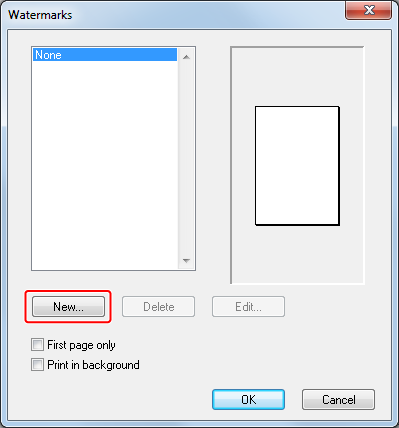
Click [New].
-
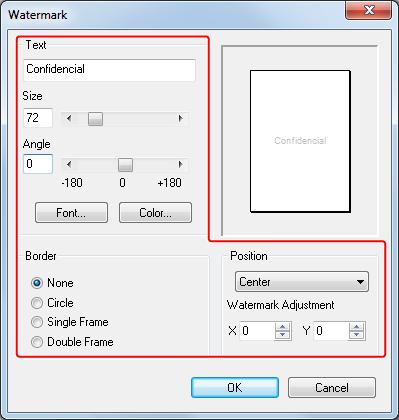
Enter text in [Text] on the [Watermarks] screen, and then set [Font], [Size], and other settings.
-
Check that the watermark to be printed is selected, and then press [OK].
The [Watermark] screen closes.
-
Change other settings if necessary, and then click [OK].
The [Printing Preferences] screen closes.
-
Click [Print] on the [Print] screen.
Printing starts.
For Windows XPS Printer Driver
-
Select [Print] from the [File] menu.
-
Click [Preferences].
-
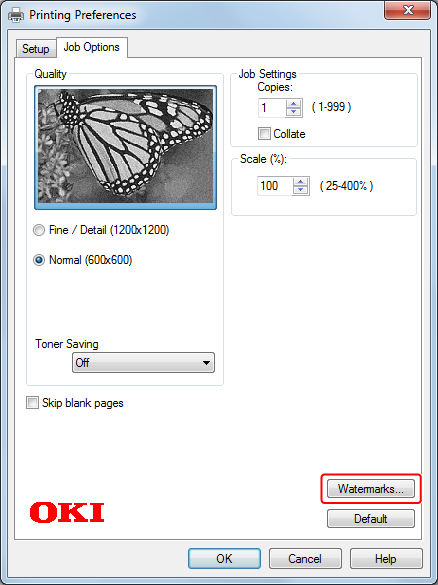
Click [Watermarks] on the [Job Options] tab.
-
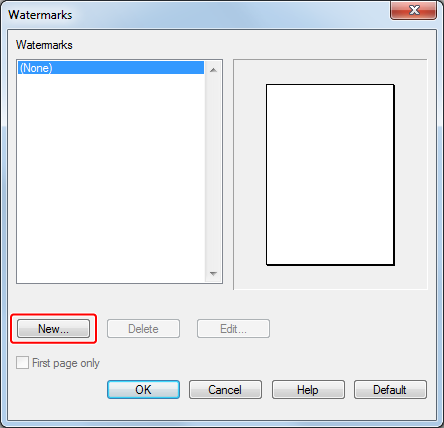
Click [New].
-
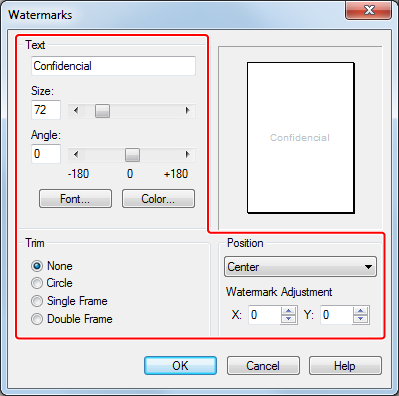
Enter text in [Text] on the [Watermarks] screen, and then set [Font], [Size], and other settings.
-
Click [OK].
-
Check that the watermark to be printed is selected, and then press [OK].
The [Watermarks] screen closes.
-
Change other settings if necessary, and then click [OK].
The [Printing Preferences] screen closes.
-
Click [Print] on the [Print] screen.
Printing starts.