

Emphasizing Fine Lines
You can print fine lines and small characters clearer.
This function is enabled by default.
Note
-
This function is not available with the Windows XPS printer driver and Mac OS X PCL printer driver.
-
The PS printer driver is not available with B412.
For Windows PCL Printer Driver
-
Select [Print] from the [File] menu.
-
Click [Preferences].
-
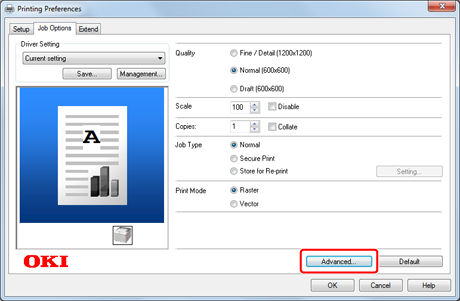
Click [Advanced] on the [Job Options] tab.
-
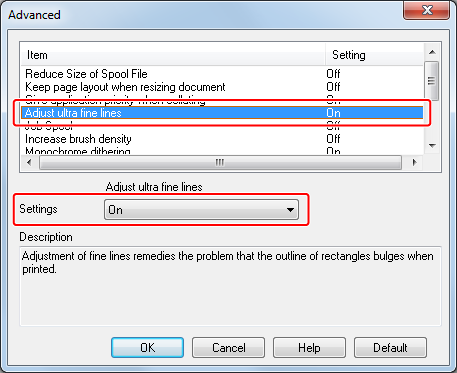
Set [Adjust ultra fine lines] to [On].
-
Change other settings if necessary, and then click [OK].
The [Printing Preferences] screen closes.
-
Click [Print] on the [Print] screen.
Printing starts.
For Windows PS Printer Driver
-
Select [Print] from the [File] menu.
-
Click [Preferences].
-
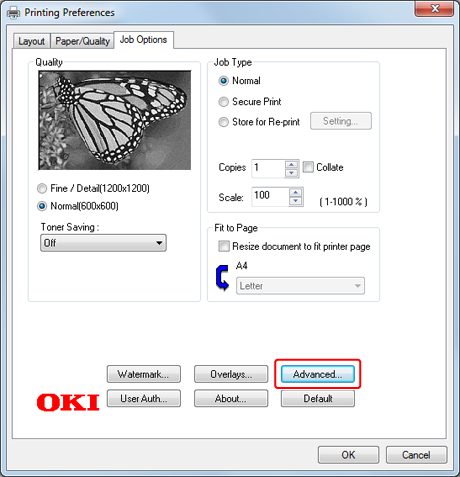
Click [Advanced] on the [Job Options] tab.
-
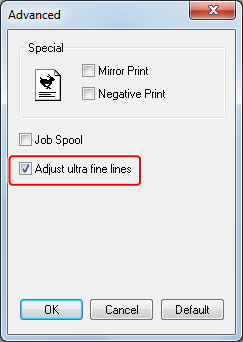
Select the [Adjust ultra fine lines] check box, and then click [OK].
-
Change other settings if necessary, and then click [OK].
The [Printing Preferences] screen closes.
-
Click [Print] on the [Print] screen.
Printing starts.
For Mac OS X PS Printer Driver
As an example, this section describes printing that uses TextEdit.
-
Open a file to print on a computer.
-
Select [Print] from the [File] menu.
-
Select [Printer Features] from the panel menu.
-
Select [Job Options] from [Feature Sets].
-
Select the [Adjust ultra fine lines] check box.
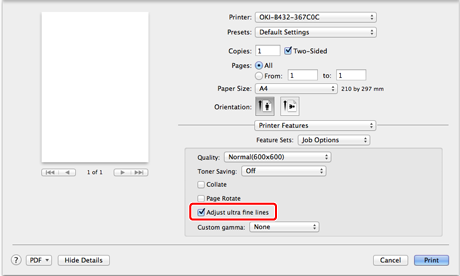
-
Change other settings if necessary, and then click [Print].
Printing starts.