

Switching to Another Paper Feed Tray Automatically When a Tray Runs Out of Paper
If paper of the same paper size and weight is loaded in the paper cassettes (Tray 1 and Tray 2) and the MP tray, prints can be made from another tray in case the specified tray runs out of paper.
Note
-
The PS printer driver is not available with B412.
-
Be sure to set the same values (paper size, media type, media weight) for each tray used for the auto tray switch. Available paper sizes vary depending on the tray.
Setting Trays for the Auto Tray Switching
-
Press
 or
or  to display [MENUS], and then press
  (OK).
(OK).[TRAY CONFIG] is displayed.
-
Press
 or
or  to display [TRAY CONFIG], and then press (OK).
 -
Press
or to display [MP TRAY CONFIG], and then press (OK). -
Press
or to display [TRAY USAGE], and then press (OK). -
Press
or to display [NORMAL TRAY]. -
Press
(OK) to add [*] to the right side of the set value. -
Press
 (ONLINE) to switch to [READY TO PRINT].
Next, set printing settings from a printer driver.
For Windows PCL Printer Driver
-
Select [Print] from the [File] menu.
-
Click [Preferences].
-
Click [Paper Feed Options] on the [Setup] tab.
-
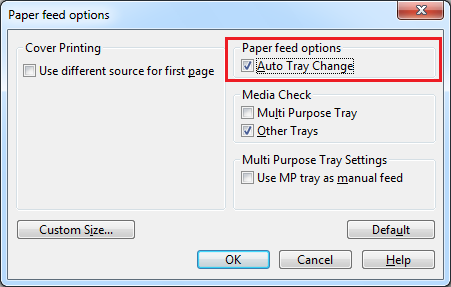
Select the [Auto] check box for [Paper feed options].
-
Click [OK].
The [OKI B432(PCL) Advanced Options] screen closes.
-
Change other settings if necessary, and then click [OK].
The [Printing Preferences] screen closes.
-
Click [Print] on the [Print] screen.
Printing starts.
For Windows PS Printer Driver
-
Select [Print] from the [File] menu.
-
Click [Preferences].
-
Click [Preferences] on the [Layout] tab.
-
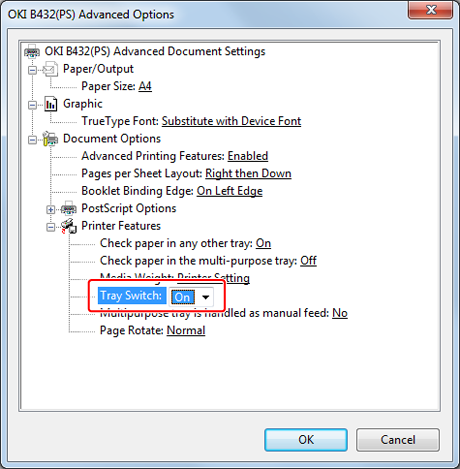
Select [On] for [Tray Switch] on the [OKI B432(PS) Advanced Options] screen.
-
Click [OK].
The [OKI B432(PS) Advanced Options] screen closes.
-
Change other settings if necessary, and then click [OK].
The [Printing Preferences] screen closes.
-
Click [Print] on the [Print] screen.
Printing starts.
For Windows XPS Printer Driver
-
Select [Print] from the [File] menu.
-
Click [Preferences].
-
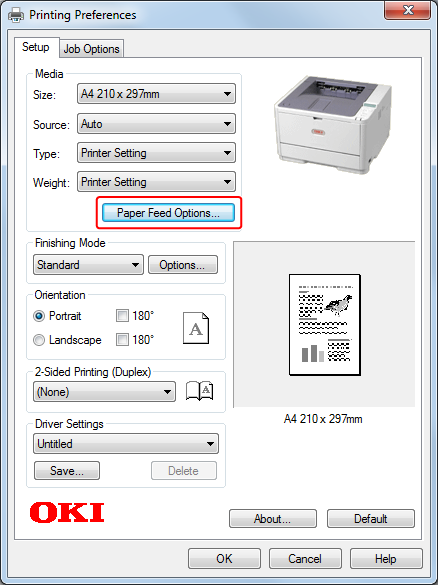
Click [Paper Feed Options] on the [Setup] tab.
-
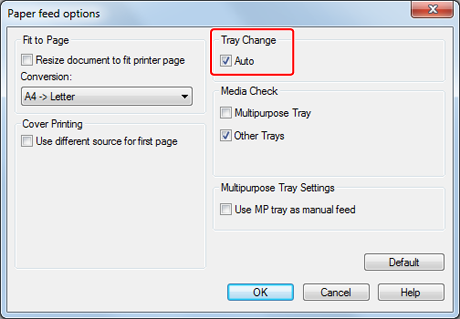
Select the [Auto] check box for [Tray Change].
-
Change other settings if necessary, and then click [OK].
The [Printing Preferences] screen closes.
-
Click [Print] on the [Print] screen.
Printing starts.
For Mac OS X PS Printer Driver
-
Select [Print] from the [File] menu.
-
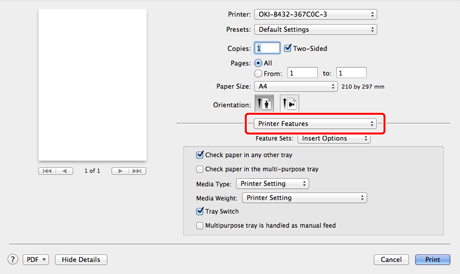
Select [Printer Features] from the panel menu.
Memo
If setting details are not displayed in the print dialog box for Mac OS X 10.7 to 10.9, click [Show Details] at the bottom of the dialog box.
-
Select [Insert Options] from the feature sets, and then select the [Tray Switch] check box.
-
Change other settings if necessary, and then click [Print].
Printing starts.
For Mac OS X PCL Printer Driver
-
Select [Print] from the [File] menu.
-
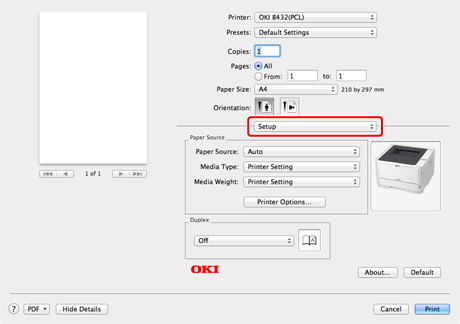
Select [Setup] from the panel menu.
-
Click [Printer Options].
-
Check the [Auto Tray Switch] check box.
-
Change other settings if necessary, and then click [Print].
Printing starts.