

For Windows PCL Printer Driver
Note
This function is not available with the Windows PS printer driver.
Saving the Settings
-
Click [Start], and then select [Devices and Printers].
-
Right-click the [OKI B432] icon, and then select [Print preferences] > [OKI B432(PCL)].
-
Set the printing settings to save.
-
Click [Save] in [Driver Setting] on the [Setup] tab.
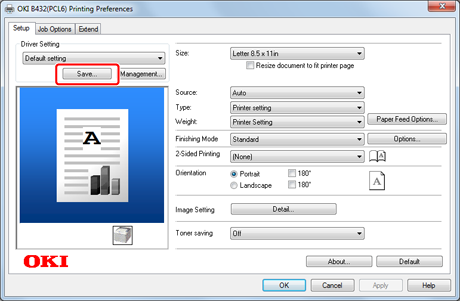
-
Specify the settings to save, and then click [OK].
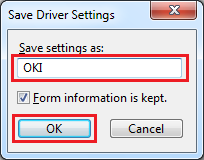
If you select the [Include media settings] check box, the paper setting on the [Setup] tab is also saved.
-
Click [OK] to close the [OKI B432 (PCL) Printing Preferences] screen.
Memo
You can save up to 14 settings.
Printing with Registered Settings
-
Select [Print] from the [File] menu.
-
Click [Preferences].
-
Select a setting to use from [Driver Setting] on the [Setup] tab.
-
Change other settings if necessary, and then click [OK].
The [Printing Preferences] screen closes.
-
Click [Print] on the [Print] screen.
Printing starts.