

Changing the Default Settings with a Printer Driver
You can use frequently-used printing settings as the printer driver's default settings.
For Windows Printer Driver
-
Click [Start], and then select [Devices and Printers].
-
Right-click the [OKI B432] icon, and then select [Printer properties] > [OKI B432(*)].
* Select a printer driver type to use.
-
Set the printing settings to use as the printer driver's default settings.
-
Click [OK].
For Mac OS X Printer Driver
-
Select [Print] from the [File] menu.
-
Set the printing settings to use as the printer driver's default settings.
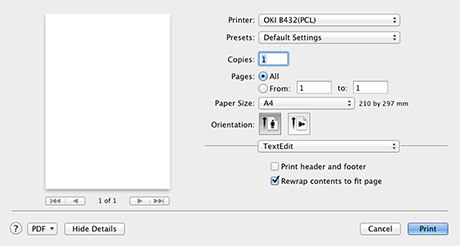
-
Select [Save Current Settings as Preset] from [Presets].
-
Enter a name to save the settings, and then click [OK].
-
Select [Show Presets] from [Presets].
-
Clear the [Reset Presets Menu to "Default Settings" After Printing] check box.
-
Click [OK].
-
Select a preset that is used as the printer driver's default settings from [Presets].
-
Start printing.
Printing starts.