

Saving Toner
Printing is possible with less toner.
Note
-
When Toner Saving is selected, printing quality is not guaranteed.
-
The PS printer driver is not available with B412.
For Windows PCL Printer Driver
-
Select [Print] from the [File] menu.
-
Click [Preferences].
-
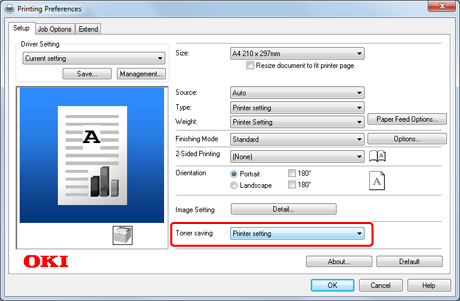
Select the [Setup] tab.
-
Select the amount of toner to save from [Toner saving].
For Windows PS Printer Driver
-
Select [Print] from the [File] menu.
-
Click [Preferences].
-
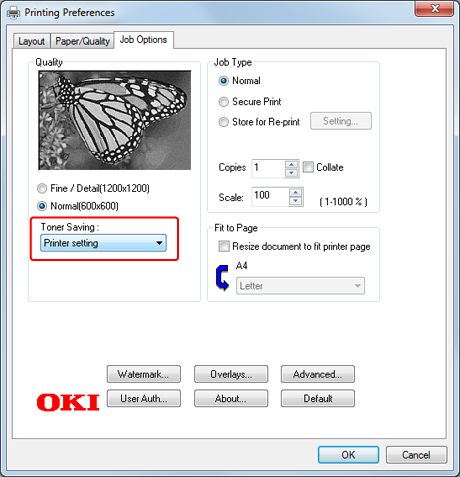
Select the [Job Options] tab.
-
Select the amount of toner to save from [Toner saving].
-
Change other settings if necessary, and then click [OK].
The [Printing Preferences] screen closes.
-
Click [Print] on the [Print] screen.
Printing starts.
For Windows XPS Printer Driver
-
Select [Print] from the [File] menu.
-
Click [Preferences].
-
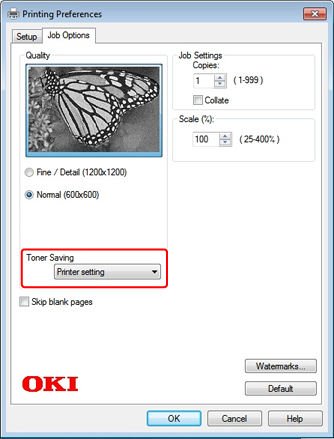
Select the [Job Options] tab.
-
Select the amount of toner to save from [Toner Saving].
-
Change other settings if necessary, and then click [OK].
The [Printing Preferences] screen closes.
-
Click [Print] on the [Print] screen.
Printing starts.
For Mac OS X PS Printer Driver
-
Select [Print] from the [File] menu.
-
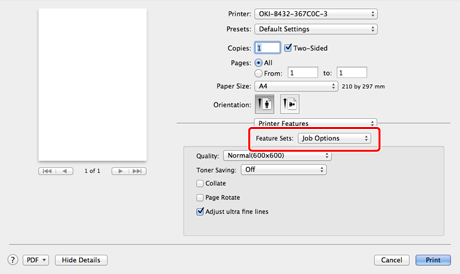
Select [Job Options] in [Feature Sets] on the [Printer Features] panel.
-
Select the amount of toner to save from [Toner saving].
-
Change other settings if necessary, and then click [Print].
Printing starts.
For Mac OS X PCL Printer Driver
-
Select [Print] from the [File] menu.
-
Select [Job Options] from the panel menu.
-
Select the amount of toner to save from [Toner Saving].
-
Change other settings if necessary, and then click [Print].
Printing starts.