

For Windows PCL Printer Driver
Setting a Password on a Computer
-
Select [Print] from the [File] menu.
-
Click [Preferences].
-
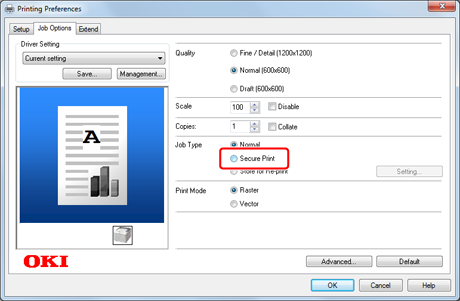
Select [Secure Print] from [Job Type] on the [Job Options] tab.
-
Enter a job name in [Job Name] and a password in [Job Password].
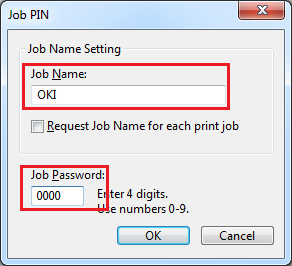
If you select the [Request Job Name for each print job] check box, a screen is displayed to ask the job name when sending the print job to the printer.
Memo
Enter the password that you set here in the printer when printing.
-
Click [OK].
-
Change other settings if necessary, and then click [OK].
The [Preferences] screen closes.
-
Click [Print] on the [Print] screen.
The print job is only sent to the printer, and it is not printed yet.
Printing a Password-protected Document from the Printer
Note
If you forget your password that is set to a job and do not print the job sent to the printer, the job remains in the internal memory.
-
Press
 or
or  on the operator panel to display [PRINT SECURE JOB], and then press
  (OK).
(OK). -
Check that [STORED JOB] is displayed, and then press
(OK). -
Enter the password that you set on the computer in [Password], and then press
(OK).Job search begins.
-
To clear an incorrect entry, press
 (CANCEL).
 -
To stop a job search, press
(CANCEL).
-
-
Check that [PRINT] is displayed, and then press
(OK).To cancel the print job, select [DELETE].
-
When [COLLATING AMOUNT] is displayed, press
 or
or  to enter the number of copies, and then press (OK).
Printing starts.