

Outputting a Document to a File Instead of Printing
You can write and store print data to a file.
Note
-
You must log in to a computer as the administrator.
-
With Windows 7, Windows Vista, and Windows Server 2008, when outputting print data to a file, you may not be able to access the file that you specified as the output file due to security restrictions. In such a case, you need to specify a folder or a file that can be accessed by the user performing the print job, for example, C:\Users\(Logon User Name)\Documents.
Using a Windows Printer Driver
-
Click [Start], and then select [Devices and Printers].
-
Right-click the [OKI B432] icon, and then select [Printer properties] > [OKI B432(*)].
* Select a printer driver type to use.
-
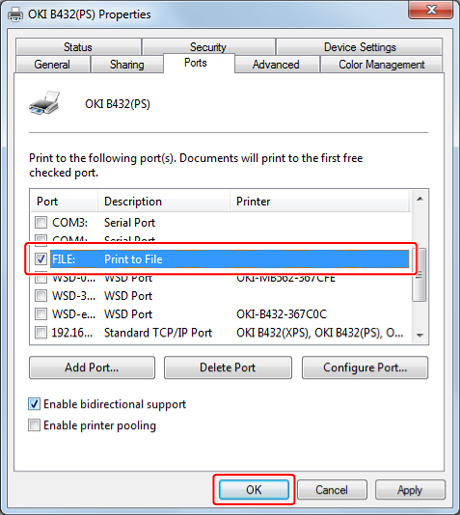
Select the [Ports] tab.
-
Select [FILE:] from the port list, and then click [OK].
-
Open a file.
-
Select [Print] from the [File] menu.
-
Click [Print].
-
Enter the name of a file, and then click [OK].
The print data is written to a file.
For Mac OS X Printer Driver
-
Select [Print] from the [File] menu.
-
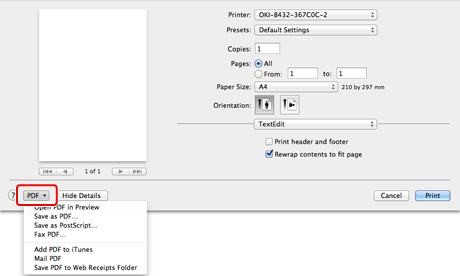
Click [PDF] in the print dialog box, and then select a file format.
-
Enter the name of a file in [Save As], select a save destination, and then click [Save].
The print data is written to a file.