

For Mac OS X PS Printer Driver
Registering an Adjusted Halftone
-
Start PS Gamma Adjuster.
-
Click [New].
-
Adjust the halftone.
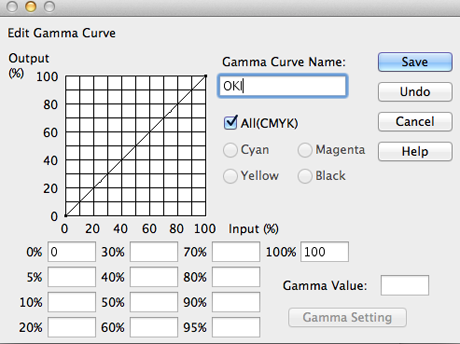
Edit the graph or enter the gamma value or the tone density in the text box to adjust the halftone.
-
Enter a setting name in [Gamma Curve Name], and then click [Save].
-
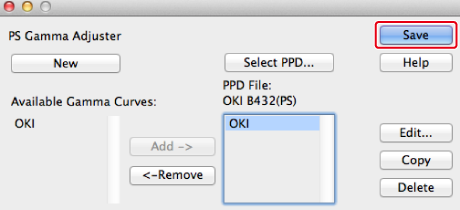
Click [Select PPD].
-
Select a PPD file to register a adjusted halftone, and then click [Open].
-
Select the created halftone adjustment, and then click [Add].
-
Click [Save].
-
Exit PS Gamma Adjuster.
-
Select [Print & Scan] in [System Preferences], and then remove the printer with the registered adjustment made, and then register the printer again.
Memo
-
Do not click the [Configure] button that is displayed while the printer is being registered.
-
If a dialog box in which you can select a printer option is displayed while the printer is being registered, click [Cancel], and then register the printer again.
-
Printing with a Registered Halftone
-
Select [Print] from the [File] menu.
-
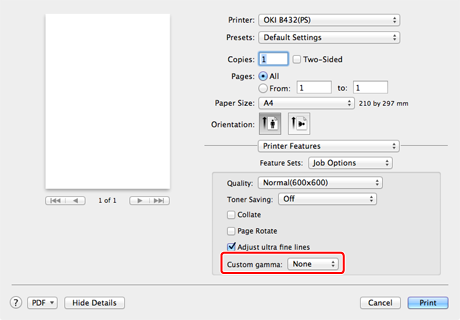
Select [Printer Features] from the panel menu.
-
Select [Job Options] from [Feature Sets].
-
Select the registered Gamma Curve Name from the [Custom gamma].
Memo
If setting details are not displayed in the print dialog box for Mac OS X 10.7 to 10.9, click [Show Details] at the bottom of the dialog box.
-
Change other settings if necessary, and then click [Print].
Printing starts.