

Checking Google Cloud Print Registrations
You can check whether the printer is registered in Google Cloud Print in one of the following three ways.
Checking from the Management Screen of Google Cloud Print
-
Access the Google Web site from a computer, smartphone, or other mobile device.
Google Web site (https://accounts.google.com)
-
Enter the Google account information, and then click [Sign in].
-
Click [Print].
The registered printers are displayed.
Checking from the Web Page
-
Open a Web browser.
-
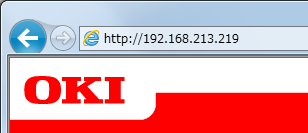
Enter "http://(IP address of the printer)" in the address bar, and then press the <Enter> key.
About the IP Address of the printer
-
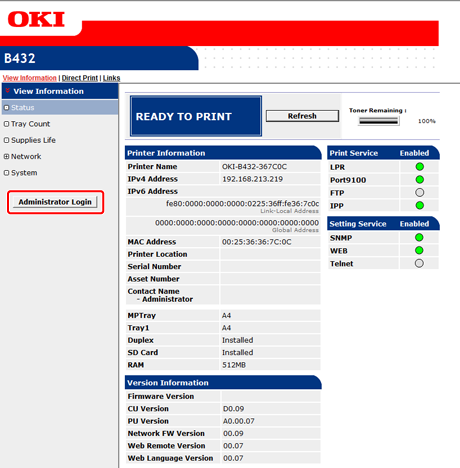
Click [Administrator Login].
Memo
The factory default user name and password for [Administrator Login] are "root" and "aaaaaa", respectively.
-
Click [SKIP].
-
Click [View Information].
-
Click [Network].
-
Check that [Registered] is displayed for [Google Cloud Print].
Checking from the Operator Panel
-
Press
 or
or  to display [Google Cloud Print], and then press
  (OK).
(OK). -
Check that the following four items are displayed.
-
PRINT MANUALLY
-
DELETE REGISTERED INFO
-
REGISTER TO Google Cloud Print
-
SETTINGS OF Google Cloud Print
-