

Using the Web page of the Printer
You can change settings of the Web page of the printer from a computer.
Changing the Administrator Password
You can change the administrator password for the printer from the Web page. The administrator password set on the Web page is used when logging in to the printer from the operator panel or the Web page.
Note
-
The password must have 6 to 12 alphanumeric characters.
-
The password is case sensitive.
-
The password is different from that of [Network Setting] in Configuration Tool.
-
Open the Web page of the printer.
-
About the IP Address of the printer
-
How to open the Web page
-
-
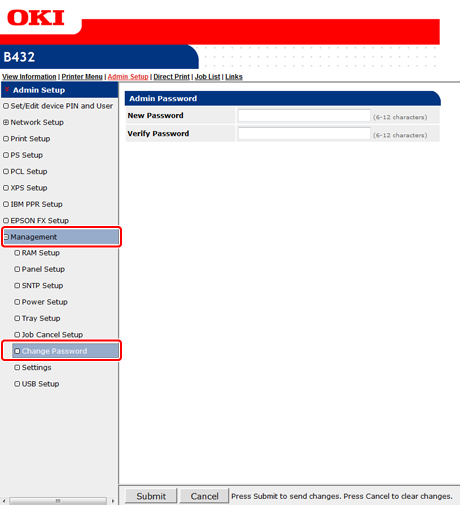
Select [Admin Setup].
-
Select [Management] > [Change Password].
-
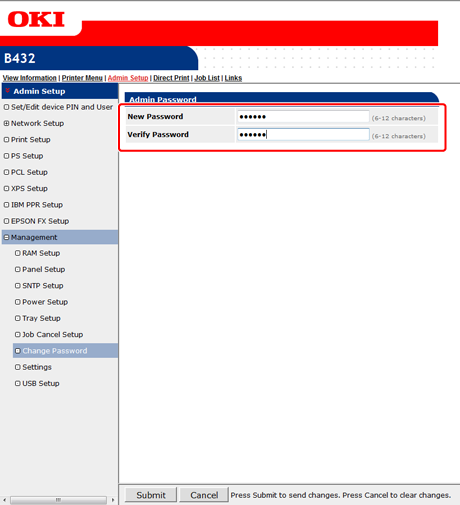
Enter a new password in [New Password].
-
Enter the new password again in [Verify Password].
Note
When you enter a password, it is displayed as "
 " on the screen.
 -
Click [Submit].
The new setting is applied when the network function is restarted.
Memo
You do not need to restart the printer. Next time you log in as the administrator, use the new password.
Changing the Printer's Settings
You can change the printer's settings from the Web page.
-
Open the Web page of the printer.
-
About the IP Address of the printer
-
How to log in to the Web page
-
-
Change the settings, and then click [Submit].
Obtaining the Date Automatically
You can get date information automatically from an Internet time server, and reflect this in the printer.
-
Open the Web page of the printer.
-
About the IP Address of the printer
-
How to log in to the Web page
-
-
Select [Admin Setup].
-
Select [Management] > [SNTP Setup].
-
Specify the time zone.
-
Select [Enable] for [SNTP].
-
Enter the NTP server in [NTP Server (Primary)].
-
Enter another NTP server in [NTP Server (Secondary)] if necessary.
-
Click [Submit].
The new setting is applied when the network function is restarted.