About the Web Page of the Printer
From the Web page on a computer, you can set network settings and menu settings for the printer. The Web page can be used for Windows and Mac OS X.
About the Operating Environment
The description below uses the following environment as an example.
Printer: B432dn
-
IP address of the printer: 192.168.0.2
Memo
Check whether your browser is set as follows.
In the [Tools] menu, select [Internet options] > [Privacy], and then set [Settings] to [Medium].
About how to set a network
Improving Security by Encrypting Communication over a Network
Opening the Web Page from a Computer
-
Open a Web browser.
-
Enter "http://(The IP address of the printer)" in the address bar, and then press the <Enter> key.
About the IP address of the printer
Note
If the IP address includes a value in one or two digits, do not enter "0" before the value. Communications may not be performed correctly.
-
An example of a correct entry: http://192.168.0.2/
-
An example of an incorrect entry: http://192.168.000.002/
-
Logging In as the Administrator
Note
To change the printer settings on the Web browser, you must log in as the administrator of the device.
-
Open a Web browser.
-
Enter "http://(The IP address of the printer)" in the address bar, and then press the <Enter> key.
About the IP address of the printer
-
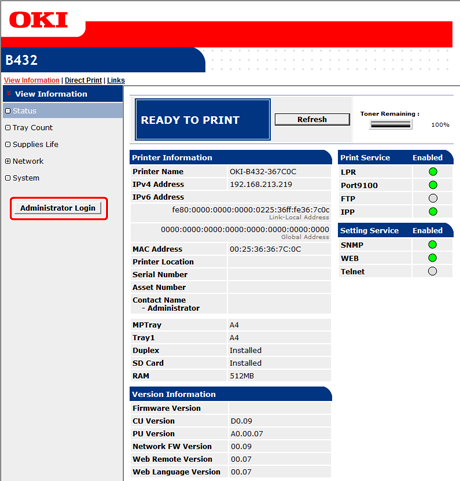
Click [Administrator Login.].
-
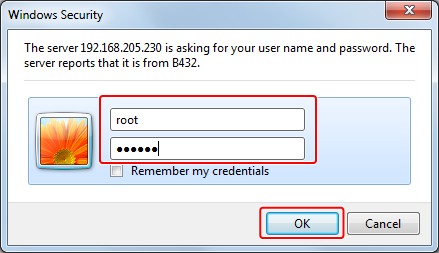
Enter the user name of the administrator in [Username] and the current password in [Password], and then click [OK].
Memo
The factory default user name and password are "root" and "aaaaaa", respectively.
-
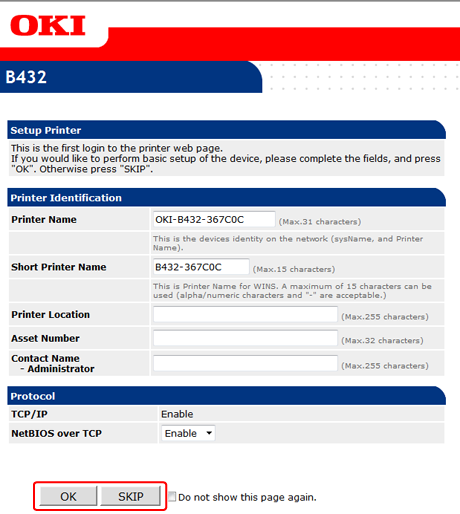
Set the printer information that can be checked on a network, and then click [OK] or [SKIP].
Note
-
To omit the setting, click [SKIP].
-
To not display from the next login, select the [Do not show this page again.] check box, and then click [OK] or [SKIP].
-
-
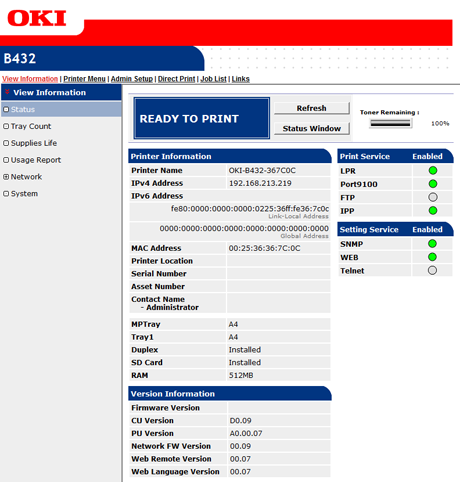
The following screen is displayed.
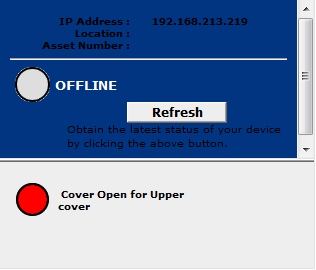
About the Status Window
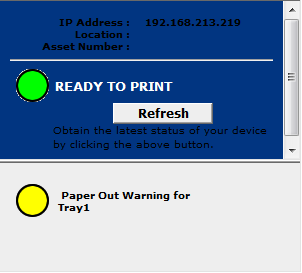
You can check the printer status on the Web page from a computer connected to the network.
About the Operating Environment for the Web Page
About the Web Page of the Printer
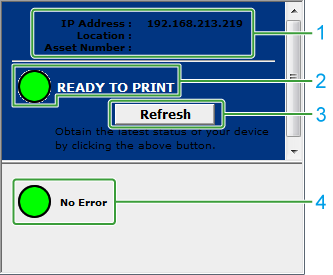
Description of functions
|
No. |
Description |
|---|---|
|
1 |
Displays the printer information. |
|
2 |
Displays the printer status with icons. |
|
3 |
When you click this button, the printer status is updated to the latest status. |
|
4 |
Displays the details of the printer status. |
About the printer status icons
|
Printer status icon |
Meaning |
|---|---|
|
|
No error / Online |
|
|
A warning occurs (printing is possible) |
|
|
An error occurs (printing is not possible) |
|
|
Offline |
 (green)
 (yellow)
 (red)
(red) (gray)
Display examples
<When paper is not loaded in tray>
<When the top cover is open>