

Updating the Printer Driver (Windows)
Update the printer driver with the "Software DVD-ROM".
Check details on the latest printer driver on the web site.
Note
-
You must log in as the administrator to complete this procedure.
-
If Windows is started, restart your computer.
-
The PS printer driver is not available with B412.
For Windows 8.1, Windows Server 2012 R2, Windows 8 and Windows Server 2012
-
Right-click the Start button at the bottom left of the screen, and then select [Control Panel] > [Devices and Printers].
-
Select any printer icon on the [Devices and Printers] screen.
-
For the PCL printer driver
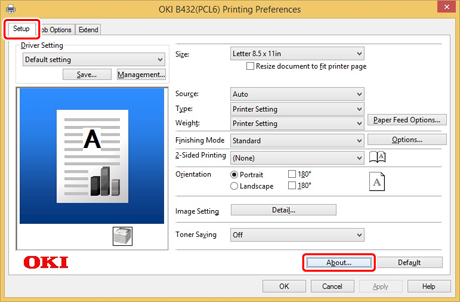
For the PCL printer driver, right-click the [OKI B432] icon, and then select [Printing preferences]. Click [About] on the [Setup] tab.
-
For the PS printer driver
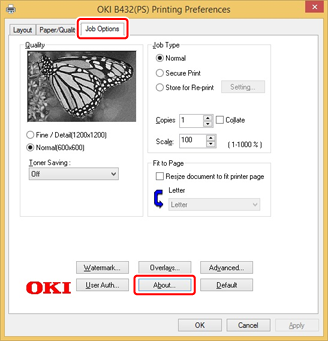
For the PS printer driver, right-click the [OKI B432] icon, and then select [Printing preferences]. Click [About] on the [Job Options] tab.
-
For the XPS printer driver
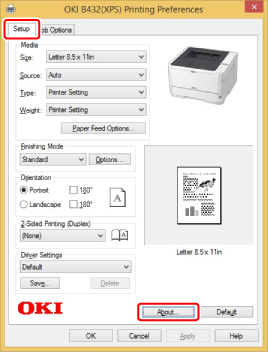
For the XPS printer driver, right-click the [OKI B432] icon, and then select [Printing preferences]. Click [About] on the [Setup] tab.
-
-
When the version information screen is displayed, write down the version, and then click [OK].
-
Remove the printer driver.
-
Install a new printer driver.
-
Display the version information screen in steps 1 to 2, and then check that the printer driver version is updated.
For Windows 7 and Windows Server 2008 R2
-
Click [Start], and then select [Devices and Printers].
-
Select a printer icon in the [Devices and Printers] folder.
-
For the PCL printer driver
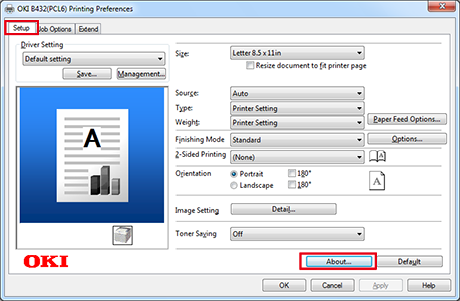
For the PCL printer driver, right-click the [OKI B432] icon, and then select [Printing preferences]. Click [About] on the [Setup] tab.
-
For the PS printer driver
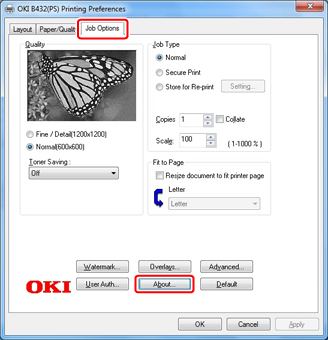
For the PS printer driver, right-click the [OKI B432] icon, and then select [Printing preferences] > [OKI B432 (PS)]. Click [About] on the [Job Options].
-
For the XPS printer driver
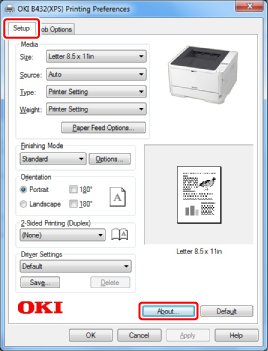
For the XPS printer driver, right-click the [OKI B432] icon, and then select [Printing preferences] > [OKI B432 (XPS)]. Click [About] on the [Setup] tab.
-
-
When the version information screen is displayed, write down the version, and then click [OK].
-
Remove the printer driver.
-
Install a new printer driver.
-
Display the version information screen in steps 1 to 2, and then check that the printer driver version is updated.
For Windows Vista and Windows Server 2008
-
Click [Start], and then select [Control Panel] > [Printers].
-
Select a printer icon in the [Printers] folder.
-
For the PCL printer driver
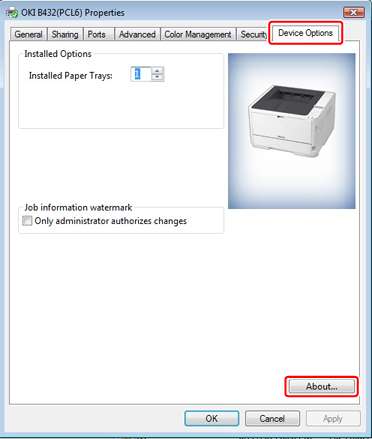
For the PCL printer driver, right-click the icon of the printer to update, and then select [Properties]. Click [About] on the [Device Options] tab.
-
For the PS printer driver
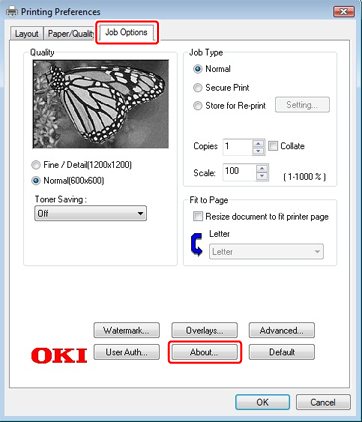
For the PS printer driver, right-click the icon of the printer to update, and then select [Printing preferences]. Click [About] on the [Job Options] tab.
-
-
When the version information screen is displayed, write down the version, and then click [OK].
-
Remove the printer driver.
-
Install a new printer driver.
-
Display the version information screen in steps 1 to 2, and then check that the printer driver version is updated.
For Windows Server 2003
-
Click [Start], and then select [Printers and Faxes].
-
Select a printer icon in the [Devices and Printers] folder.
-
For the PCL printer driver
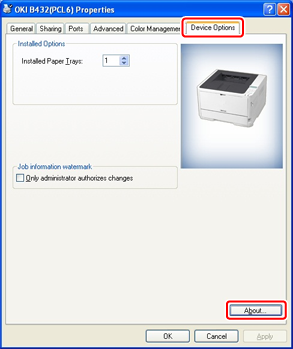
For the PCL printer driver, right-click the [OKI B432 (PCL)] icon, and then select [Properties]. Click [About] on the [Device Options] tab.
-
For the PS printer driver
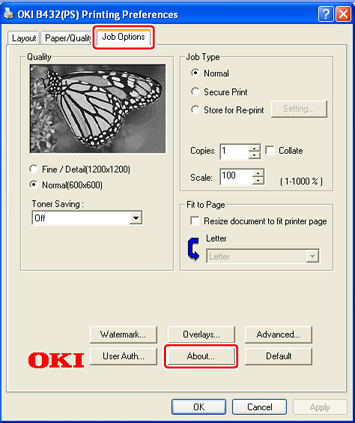
For the PS printer driver, right-click the icon of the printer to update, and then select [Printing preferences]. Click [About] on the [Job Options] tab.
-
-
When the version information screen is displayed, write down the version, and then click [OK].
-
Right-click the icon of the printer to update, and then select [Delete].
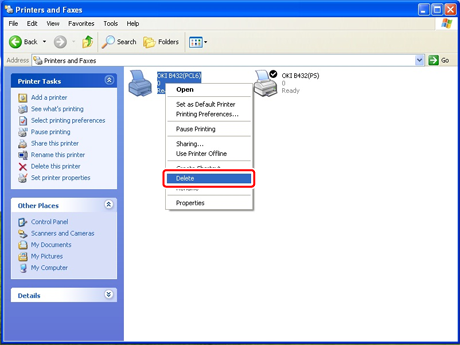
Hereafter, follow the on-screen instructions.
Note
To ensure the printer driver's successful update, remove all printer drivers of the same type as the printer driver to be updated.
-
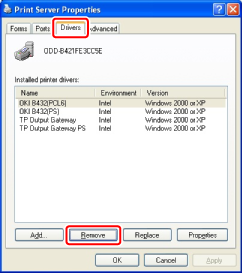
In the [Printers and Faxes] folder, select [File] > [Server Properties].
-
Select the corresponding model name on the [Drivers] tab, and then click [Remove].
-
Restart Windows.
-
Install a new printer driver.
Note
-
Be sure to check that the printer is turned on.
-
For Windows Server 2003, set up with [Add a Printer].
-
-
Display the version information screen in steps 1 to 2, and then check that the printer driver version is updated.