

Selecting a Tray Automatically for the Specified Paper
You can automatically select a tray (paper cassette (Tray 1 or Tray 2)) or MP tray that holds paper of the same size that is set with the printer driver.
Note
-
The PS printer driver is not available with B412.
-
Be sure to set the paper size and weight for a paper cassette (Tray 1, and Tray 2), and the MP tray on the operator panel.
Set the Paper Tray to be Used
-
Press
 or
or  to display [MENUS], and then press
  (OK).
(OK).[TRAY CONFIG] is displayed.
-
Press
 or
or  to display [TRAY CONFIG], and then press (OK).
 -
Press
or to display [MP TRAY CONFIG], and then press (OK). -
Press
or to display [TRAY USAGE], and then press (OK). -
Press
or to display [NORMAL TRAY]. -
Press
(OK) to add [*] to the right side of the set value.
-
Press
 (ONLINE) to switch to [READY TO PRINT].
Next, set printing settings from a printer driver.
For Windows PCL Printer Driver
-
Select [Print] from the [File] menu.
-
Click [Preferences].
-
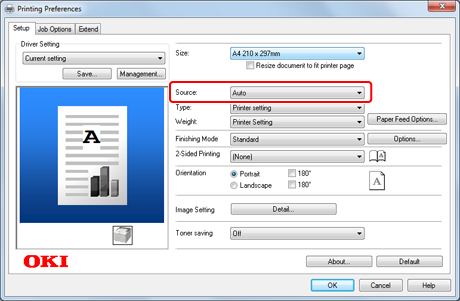
Select [Auto] from [Source] on the [Setup] tab.
-
Change other settings if necessary, and then click [OK].
The [Printing Preferences] screen closes.
-
Click [Print] on the [Print] screen.
Printing starts.
For Windows PS Printer Driver
-
Select [Print] from the [File] menu.
-
Click [Preferences].
-
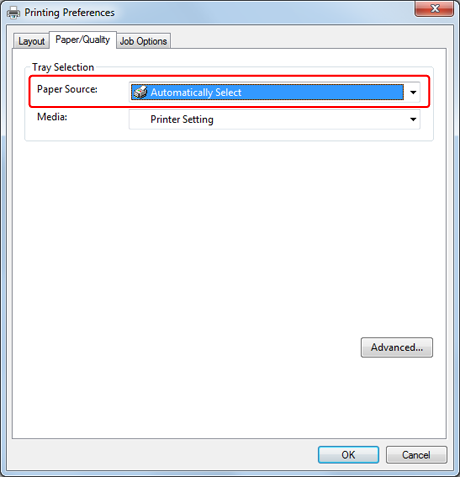
Select [Automatically Select] from [Paper Source] on the [Paper/Quality] tab.
-
Change other settings if necessary, and then click [OK].
The [Printing Preferences] screen closes.
-
Click [Print] on the [Print] screen.
Printing starts.
For Windows XPS Printer Driver
-
Select [Print] from the [File] menu.
-
Click [Preferences].
-
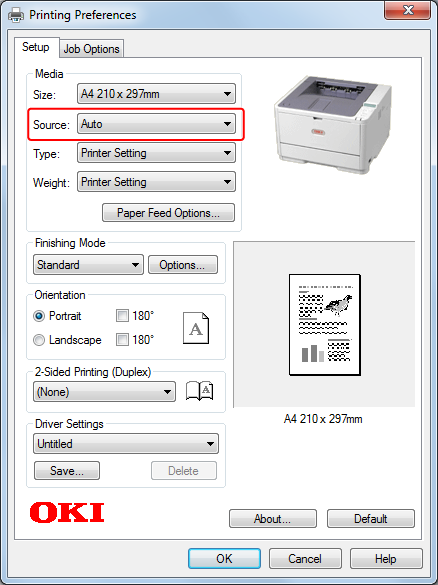
Select [Auto] from [Source] on the [Setup] tab.
-
Change other settings if necessary, and then click [OK].
The [Printing Preferences] screen closes.
-
Click [Print] on the [Print] screen.
Printing starts.
For Mac OS X PS Printer Driver
-
Select [Print] from the [File] menu.
-
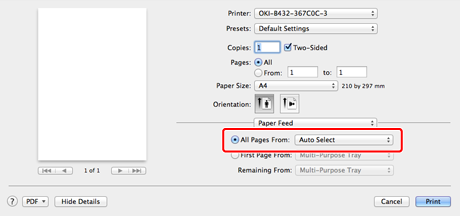
Select [All Pages From] for [Auto Select] on the [Paper Feed] panel.
-
Change other settings if necessary, and then click [Print].
Printing starts.
For Mac OS X PCL Printer Driver
-
Select [Print] from the [File] menu.
-
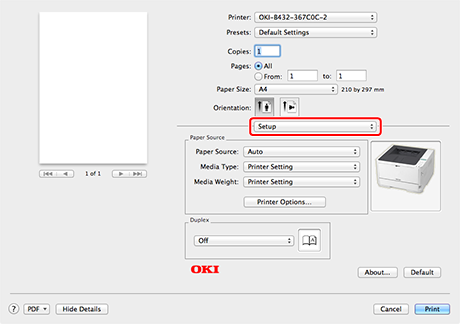
Select [Setup] from the panel menu.
-
Select [Auto] from [Paper Source].
-
Change other settings if necessary, and then click [Print].
Printing starts.