

For Windows PCL Printer Driver
Saving Print Data to the Printer from a Computer
With the printer driver, set a password to the file that you want to save in the printer. The data that is sent as a print job is saved in the memory of the printer.
-
Select [Print] from the [File] menu.
-
Click [Preferences].
-
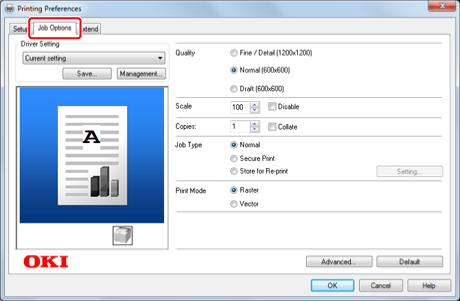
Select the [Job Options] tab.
-
Select [Store for Re-print] from [Job Type].
-
Enter a job name in [Job Name] and a password in [Job Password].
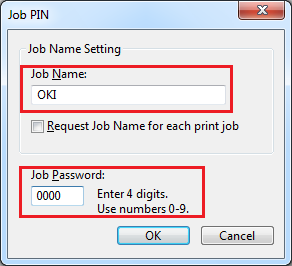
If you select the [Request Job Name for each print job] check box, a screen is displayed to ask the job name when sending the print job to the printer.
Memo
Enter the password that you set here in the printer when printing.
-
Click [OK].
-
Change other settings if necessary, and then click [OK].
The [Preferences] screen closes.
-
Click [Print] on the [Print] screen.
The print job is sent to the printer and saved in the internal memory of the printer. At this point, the print job is not printed yet. Printing is performed from the operator panel.
Printing the Saved Document from the Printer
Print a password-protected print job saved in the internal memory of the printer.
-
Press
 or
or  on the operator panel to display [PRINT SECURE JOB], and then press
  (OK).
(OK). -
Check that [STORED JOB] is displayed, and then press
(OK). -
Enter the password that you set on the computer in [Password], and then press
(OK).Job search begins.
-
To clear an incorrect entry, press
 (CANCEL).
 -
To stop a job search, press
(CANCEL).
-
-
Check that [PRINT] is displayed, and then press
(OK).To cancel the print job, select [DELETE].
-
When [COLLATING AMOUNT] is displayed, press
 or
or  to enter the number of copies, and then press (OK).
Printing starts.
You can delete saved print data with Configuration Tool.