

If the Error Code is "380", "381", "382", "385" or "390" (Paper Output Part)
This section describes how to clear a paper jam in the paper output part in the printer.
-
Open the top cover.

Burns may result.

Do not touch the fuser, because it is very hot.
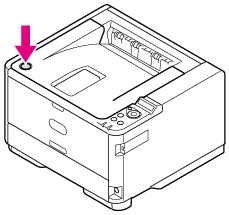
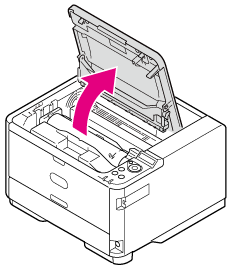
-
Take the image drum out.
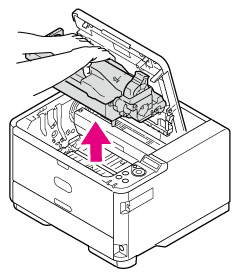
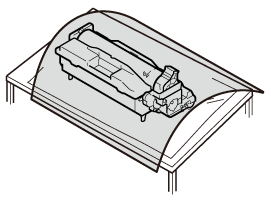
Note
-
Use extra care when handling the image drum (the green cylinder), because it is fragile.
-
Do not expose the image drum to direct sunlight or strong light (approximately 1,500 lux or more). Even under room lighting, when leaving the image drum cartridge for 5 minutes or more, put sheets of paper over it to shield it from the light.
Even with sheets of paper put over the image drum cartridge, do not leave it for one hour or more.
-
-
Remove the jammed paper if necessary.
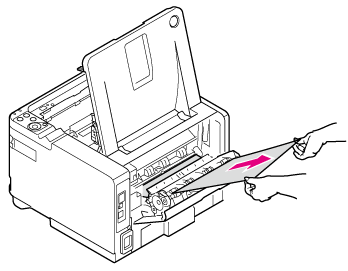
If the rear end of the paper is visible inside the printer
Hold the rear end of the jammed paper, and then pull the paper out gently.
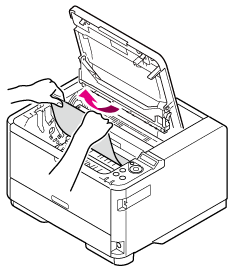
Note
Even when paper jams in the paper output section, if the paper is visible inside the top cover, pull out the paper toward the inside of the printer.
Do not pull out the paper toward the rear side forcibly, or the fuser unit may be damaged.
If the rear end of paper is not visible but its top side is visible at the output part
-
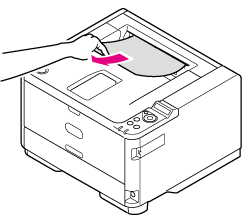
If the top end of the paper is visible in the facedown stacker
Hold the top end of the paper, and then pull the paper out gently.
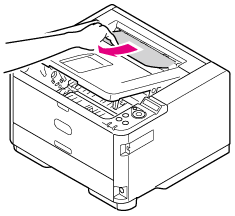
If you cannot remove the paper, open the rear cover, hold the top end of the paper, and then pull the paper out gently.
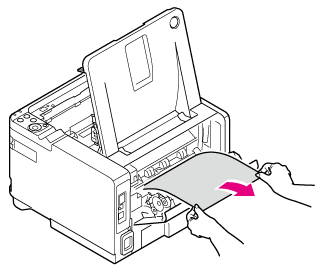
-
If the top end of the paper is visible in the faceup stacker
Hold the top end of the paper, and then pull the paper out gently.
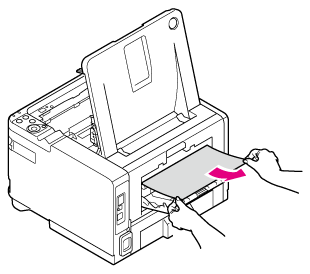
If you cannot remove the paper, open the rear cover, hold the top end of the paper, and then pull the paper out gently.
If you cannot remove the paper by using the above method, proceed to step 4 without pulling it out forcibly.
-
-
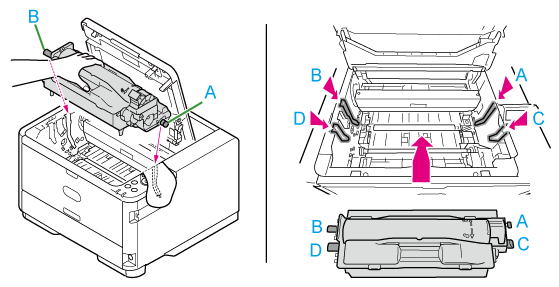
Align the guide posts (ABCD) on the left and right sides of the image drum with their guide grooves on the left and right sides inside the printer, and then put the image drum back into the printer gently.
If you cannot pull the paper out, turn the printer off, and then back on. When the printer starts, hold the top end of the paper, and then pull the paper out.
Note
If a paper jam occurs when feeding paper, check if paper still remains in each paper path. Note that you must open and close the top cover to cancel the ALARM display.
-
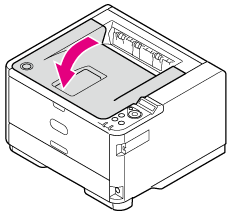
Close the top cover.